What's new in v2.11
• Lukas Hermann
New team structure
We’ve completely reworked how team member permission work within Rundown Studio. This overhaul is to ensure members within your team only have access to the rundowns/events that you want them to see.
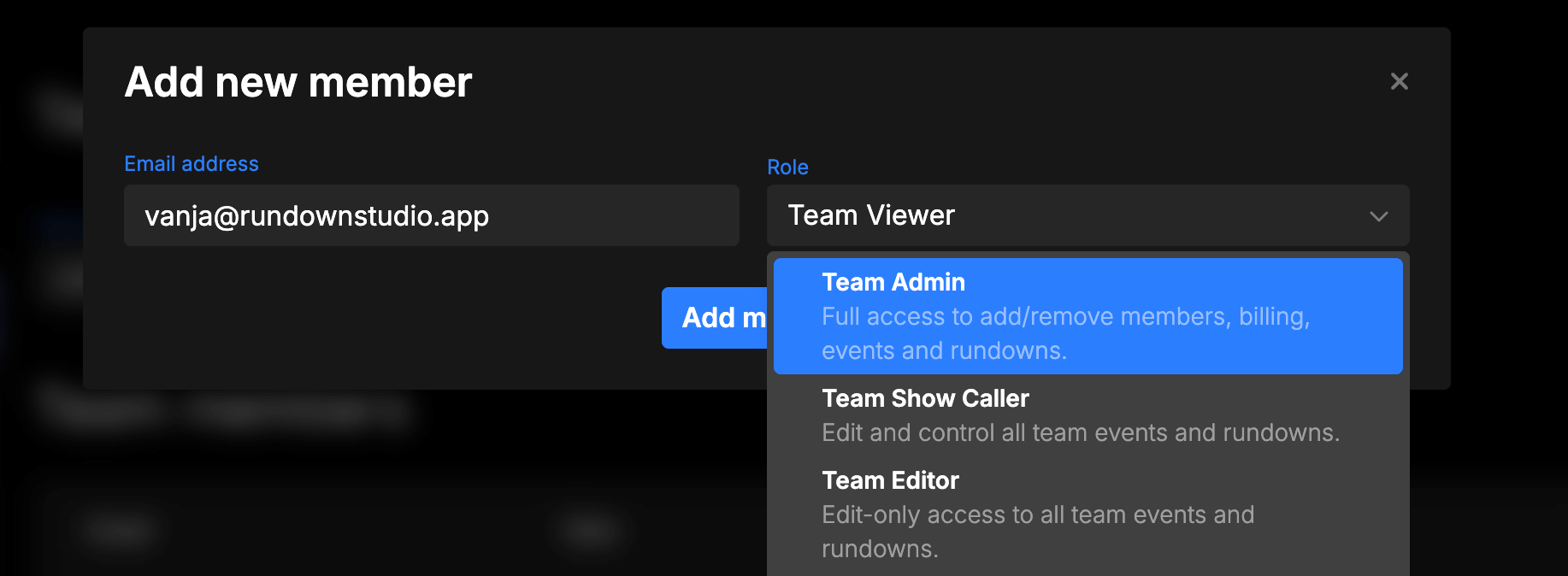
Team-based Roles
- Admin: Full control over the entire team. They can add/remove team members and reassign permissions. They are also in charge of all billing aspects of an account.
- 🆕 Show Caller: See/edit/control all aspects of all rundowns/events within a team.
- 🆕 Editor: These team members can see and edit rundowns/events but cannot advance through cue timing or run a show.
- 🆕 Viewer: View-only access to events/rundowns within an account.
Event-based roles
We have also added some event-based roles so that admins can specifically choose which events a specific team member can see/edit/control.
All of these roles are the same as the team-based roles in terms of permissions, however the team member can only see a limited number of events within their account - specifically the ones that have been shared with them.
- 🆕 Event Show Caller
- 🆕 Event Editor
- 🆕 Viewer
Migration from the old system
To ensure smooth operations between these releases we have migrated all team members as follows:
Team Admin → Team Admin
No change here. If you were a Team Admin before you will still be a team admin.
Team Member → Team Show Caller
All previous Team Members are now automatically Team Show Callers to ensure each of your members have the same access level as before.
You can remove or re-assign each of your team members to a new role within the Dashboard.

Cell history
We now keep track of all changes made to each and every cell within your rundown - as well as who made the change and when.
Within any cell, you can click the “History” icon at the bottom and explore all previous versions.
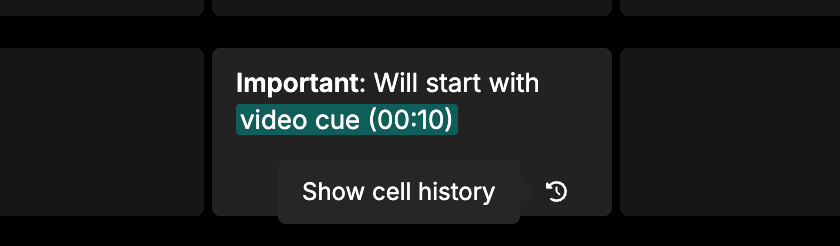
Then you can click on “Restore” to restore a cell to any point in history.
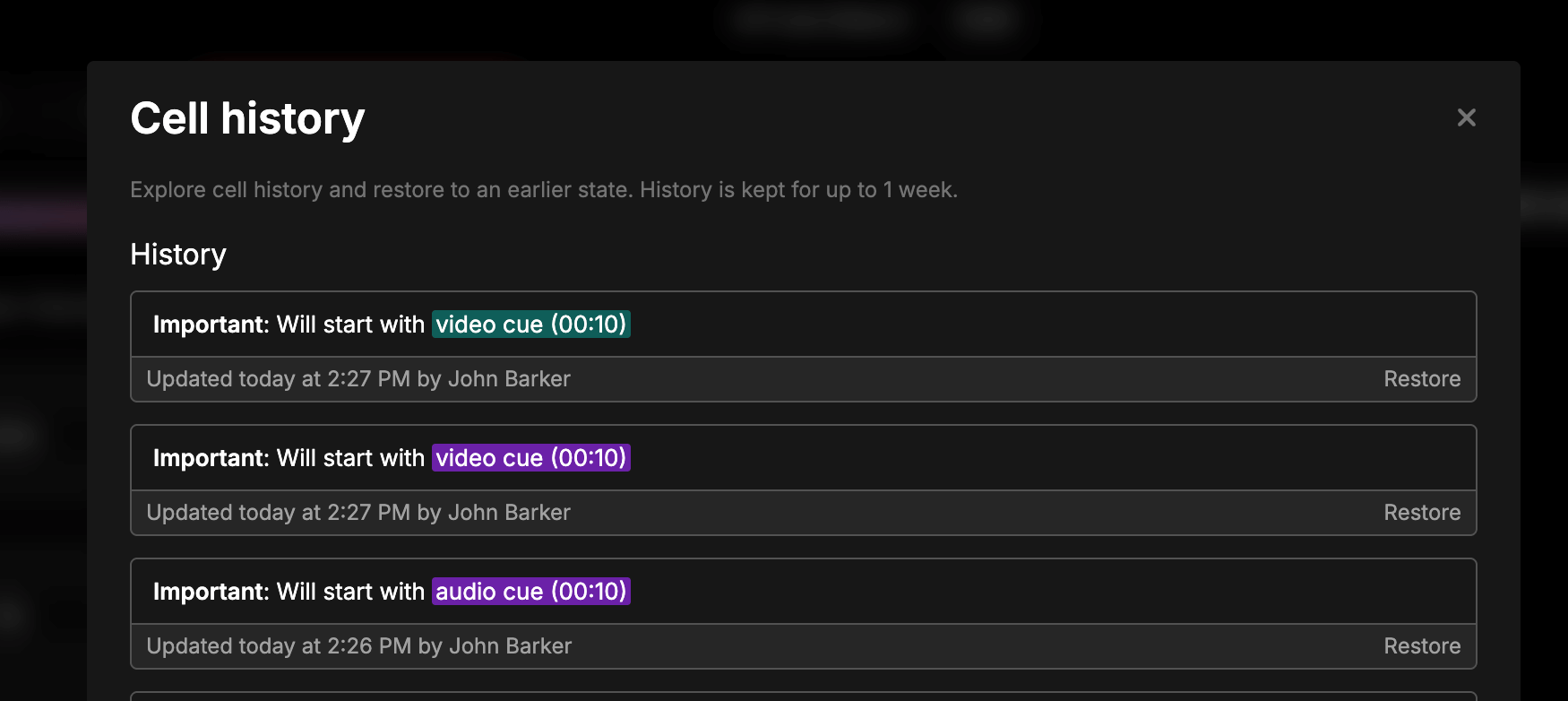
We keep cell history for up to 30 days.
Note: Cell changes made before the release of v2.11 have not been stored.
Ungroup a group
We’ve added an easy way to remove all cues from a group with the click of a button.
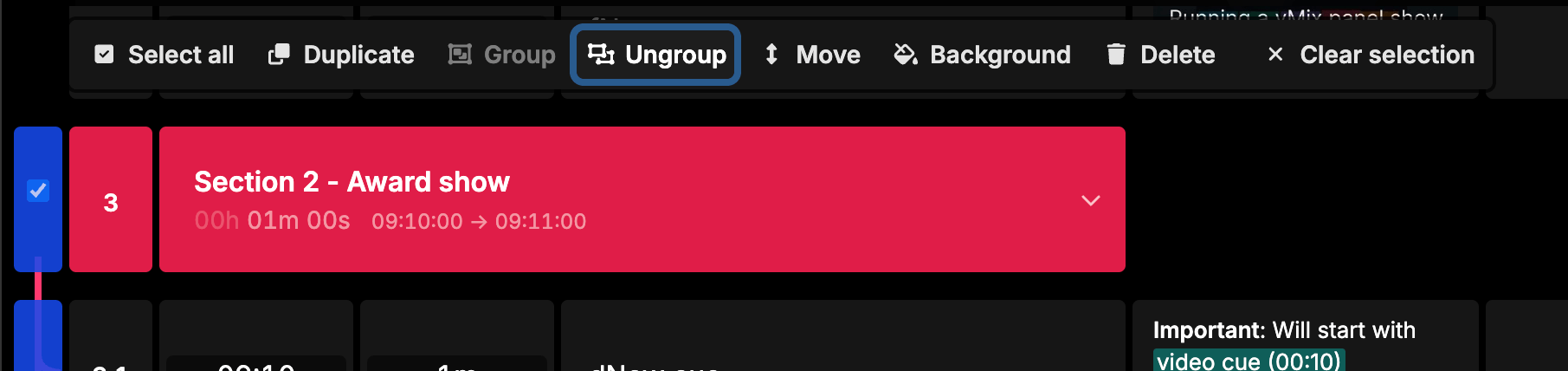
Use the batch edit tool to select a group heading, then choose “Ungroup” from the batch toolbar.
This will remove the group heading and move the cues back out of the group.
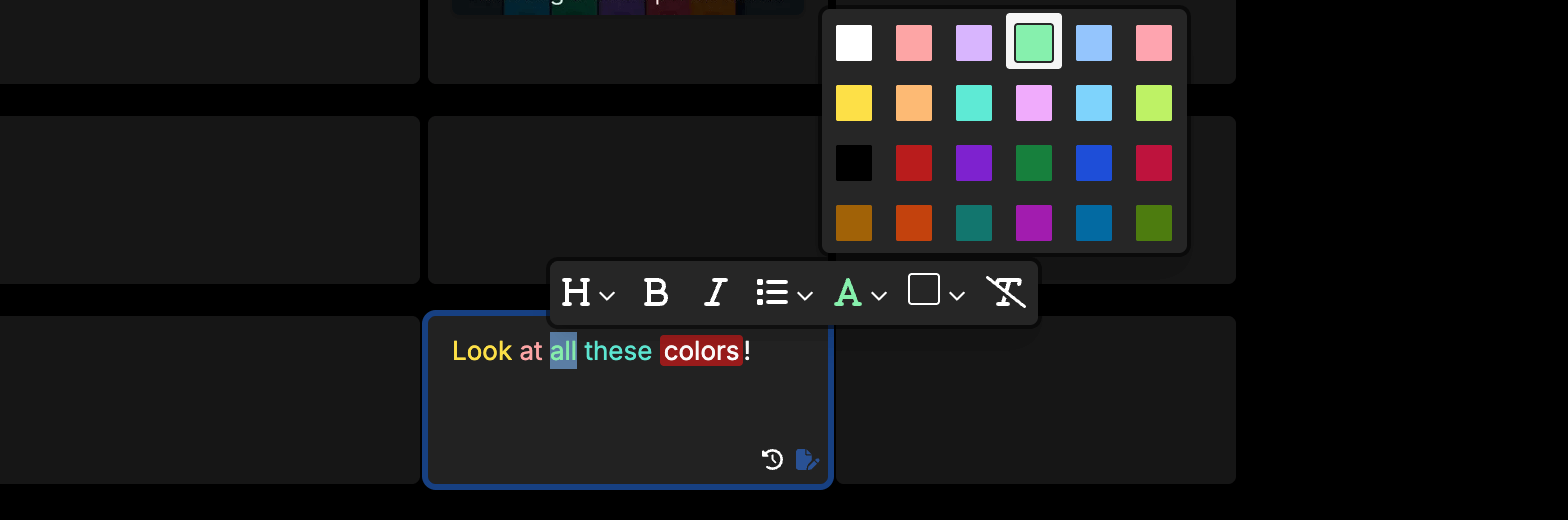
More colors when styling text
The color palette has doubled in size when adding text or background colors to your cell text.
And more…
- Dates are now clearer as we have opted for “Oct 23, 2026” format (previously 10/23/26).
- Events are now listed in reverse-order by default.
- Improvements to sign-up and login pages.
- “New updates available” button when we launch a new version.
Thanks a bunch for using Rundown Studio. Stay up to date with development with our email newsletter.