@Mentions: Tag People, Positions, and Places Across Your Rundown
• John Barker
Every production has a cast of recurring characters - the camera operator on Camera 2, the sponsor whose logo needs to be on screen during the break, the guest speaker arriving at 3pm. Their names and details get scattered across dozens of cells, and when something changes (a new camera operator, a sponsor name update), you’re hunting through the entire rundown to fix it.
@Mentions solve this. Create a mention once - with a name, description, photos, contact details, whatever you need - and tag it anywhere in your rundown by typing @. Change the mention, and every instance updates automatically.
How it works
- Open your rundown settings and create your mentions - each one has a name and a rich-text description (which can include images, formatted text, and links).
- In any cell, type
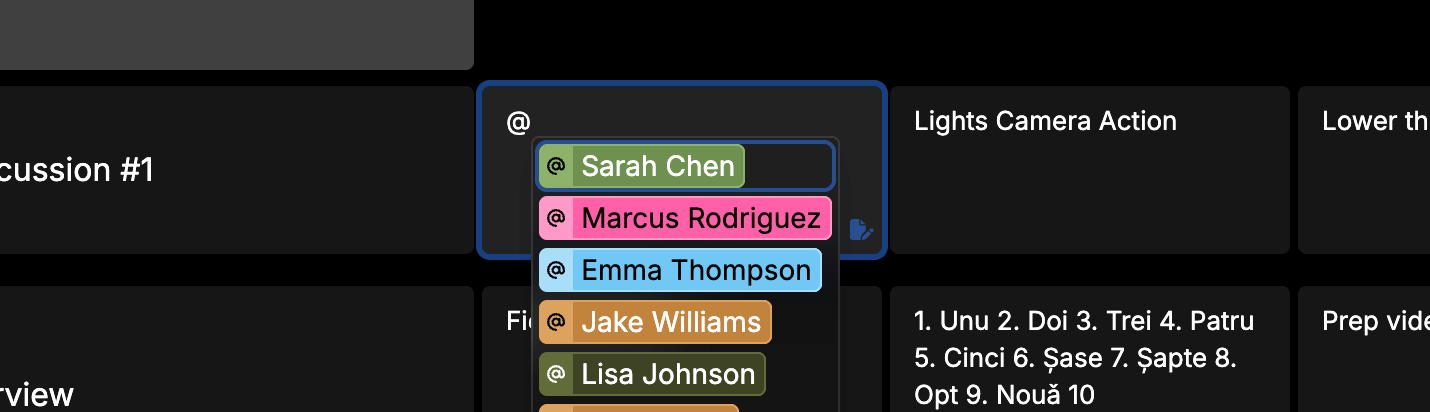
@to bring up your mentions list. - Click a mention to insert it inline as styled text.
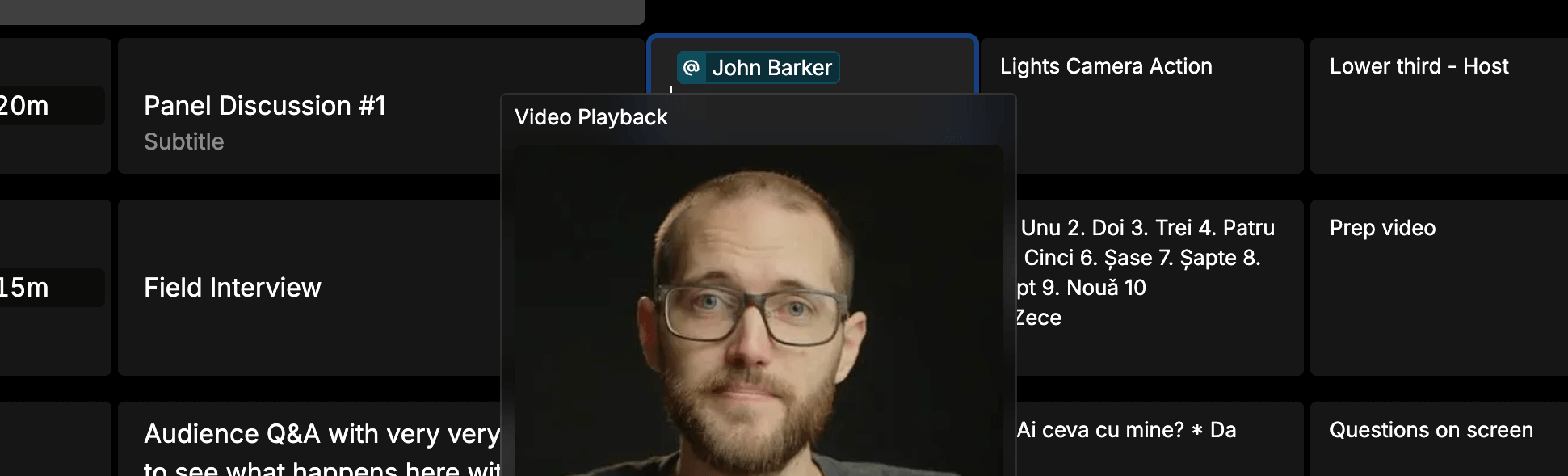
- Hover over any mention in the rundown to see its full description in a popup.
That’s it. The mention is now a live reference - update it once in settings, and every cell that tags it reflects the change instantly.
10 ways to use @Mentions in your productions
1. Crew members
Create a mention for each crew member with their name, role, phone number, and a photo. When your rundown says @Sarah Chen in a cue, anyone can hover to see that she’s the stage manager, what she looks like, and how to reach her.
This is especially useful for freelance-heavy productions where not everyone knows each other. A new PA can hover over @Floor Manager and immediately see who they’re looking for.
2. Camera positions
Set up mentions like @CAM 1, @CAM 2, @CAM 3 with descriptions that include a photo of each camera’s framing or a diagram of its position. When the show caller’s rundown says “Cut to @CAM 2,” anyone can hover to see exactly what shot that is.
For multi-camera shoots, this removes the constant question of “which camera is Camera 2 again?” - especially useful for crew who weren’t at the site survey.
3. On-screen talent and presenters
Create mentions for each presenter with their headshot, bio, pronunciation guide for their name, and any relevant notes (“prefers to be introduced as Dr. Martinez, not Maria”). The floor manager hovering over @Dr. Martinez before a walk-on gets all the context they need.
For awards shows and galas with multiple presenters throughout the night, this is a lifesaver - no more flipping through a separate contact sheet.
4. Sponsors and clients
Tag sponsors in cues where their branding needs to appear - @Acme Corp in the description for a segment means anyone can hover to see the sponsor’s logo, brand guidelines, the specific product name they want mentioned, and the client contact if there are questions.
This keeps sponsor requirements visible at the exact moment they matter, rather than buried in a PDF brief nobody can find during the show.
5. Venue locations
For large venues, festivals, or multi-room events, create mentions for key locations: @Green Room, @Loading Dock B, @Main Stage, @Breakout Room 3. Include photos, floor plan crops, or directions in the description.
When a cue says “Talent moves from @Green Room to @Main Stage,” a new crew member can hover to see exactly where those are - no radio call needed.
6. Equipment presets and technical setups
Set up mentions like @Wireless Pack A or @Lighting Look 3 with descriptions that include the exact settings, frequencies, channel assignments, or configuration screenshots. The A2 hovering over @Wireless Pack A sees which frequency, which belt pack, and which talent it’s assigned to.
7. Guest speakers and panelists
For conferences and panel discussions, create a mention per speaker with their headshot, bio, company, the topic they’re covering, and any AV requirements (their own laptop for slides, special mic needs, accessibility requirements). When the stage manager sees @Dr. Patel in a cue, they can hover to see everything they need to know before the walk-on.
8. Musical acts and performers
For concerts, festivals, or award shows with musical guests, create mentions with the act name, tech rider summary (how many inputs, in-ear or wedge monitors, backline requirements), set length, and a photo. The audio team seeing @The Satellites in the changeover cue can hover to remind themselves: 5-piece band, 12 inputs, in-ear monitors, 45-minute set.
9. VTs and pre-recorded content
Tag video assets as mentions - @VT-OPENING, @VT-SPONSOR-REEL, @VT-NOMINEE-PKG-3 - with descriptions that include the duration, thumbnail, and any notes about audio levels or aspect ratio. The playback operator can hover to confirm they’ve got the right file loaded.
10. Emergency contacts and key decision-makers
Create mentions for people who aren’t on comms but might need to be reached quickly: @Venue Security, @Client Contact, @Medical. Include direct phone numbers and any relevant protocols. When something goes wrong mid-show, the production manager doesn’t need to dig through a call sheet - they hover over @Venue Security and the number is right there.
Why this matters more than a contact sheet
You might be thinking: “We already have a crew list. Why do we need this?”
The difference is context. A contact sheet is a separate document you have to find, open, and search through. A mention is embedded directly in the cue where it matters - right next to the action, at the moment the information is needed. The hover popup means nobody has to leave the rundown to get the details.
And because mentions update globally, you never have a situation where half the rundown says “Camera 2 - Jake” and the other half still says “Camera 2 - Tom” after a last-minute crew swap.

Tips for getting the most out of mentions
- Use consistent naming - decide on a convention (
@CAM 1vs@Camera 1vs@C1) and stick with it across all your rundowns. - Add photos - a headshot or equipment photo in the description makes mentions far more useful than text alone, especially for crew who are new to the production.
- Keep descriptions focused - include what someone needs to know during the show, not everything about the person or thing. Save the full bio for the call sheet.
- Set them up early - create your mentions during pre-production so the team can start using them as they build out the rundown, rather than retrofitting them later.
- Use the API - if you have a crew database or asset management system, you can create and update mentions programmatically through our public API.
Get started
Mentions are available on all plans. Open any rundown, go to settings, and start creating your first mentions - then type @ in any cell to use them.
For the full documentation, see our Mentions guide.
Get guides like this delivered to your inbox - join our newsletter.