Getting started
What is Rundown Studio?Create an accountRundown
Rundown basicsColumnsTemplatesSettingsGaps and overlapsTrashCell historyMentionsText variablesRunning a showSub-timersImport CSV rundownEvent
Event basicsSharing eventsAPI
Getting startedAPI reference ↗Build a rundown from CSVWorking with cell contentLive updates over SSESub-timers (experimental)Advanced usageError referenceMigrating from v0API v0 (deprecated)Integrations
Companion ModuleBitfocus ButtonsOBS StudioOnTheAir VideoProPresenterQLabSharing and outputs
Read-only rundownEditable rundownQuick access codeOutputPrompterPDF exportCSV exportAccount
Your teamSubscription and invoicesUpdates
ChangelogBitfocus' Companion module
Using the official Companion module
You can use the built-in companion module within Bitfocus’ Companion to talk directly with Rundown Studio.
Add the instance
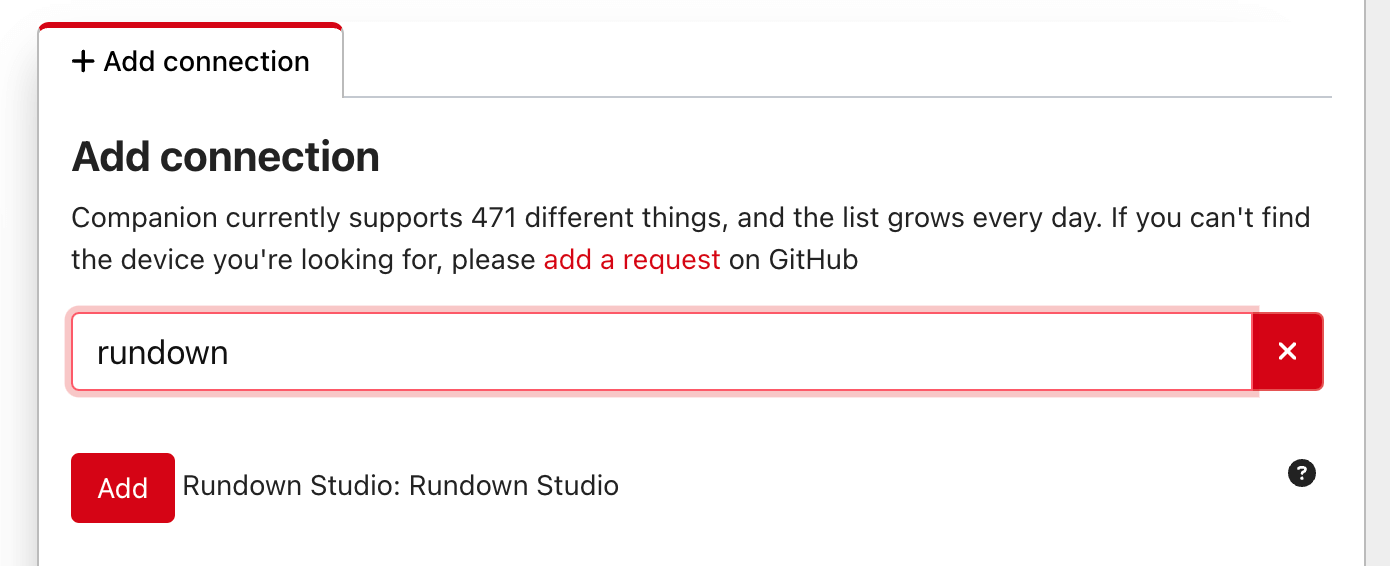
Within Companion, add the “Rundown Studio” module.
Configure the instance
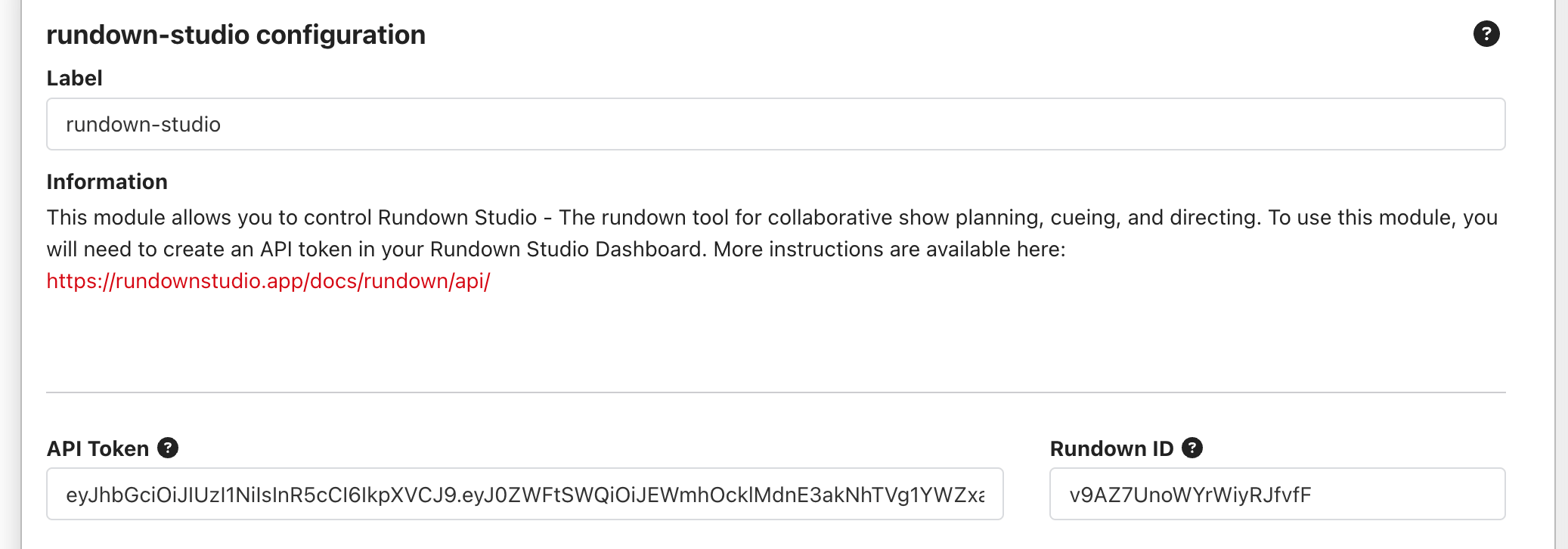
You’ll have to add a Token and Rundown ID in order to talk to Rundown Studio.
Token
This can be found in your dashboard in the API tab.
Rundown ID
Get the rundown ID from the URL of any rundown you want to control.
For example, if the URL of your rundown is:
https://app.rundownstudio.app/rundown/QFLMPMoKP9yfXneAXUlB → The ID is QFLMPMoKP9yfXneAXUlB
Presets
We’ve packed the module with lots of presets to help your build your show even faster.
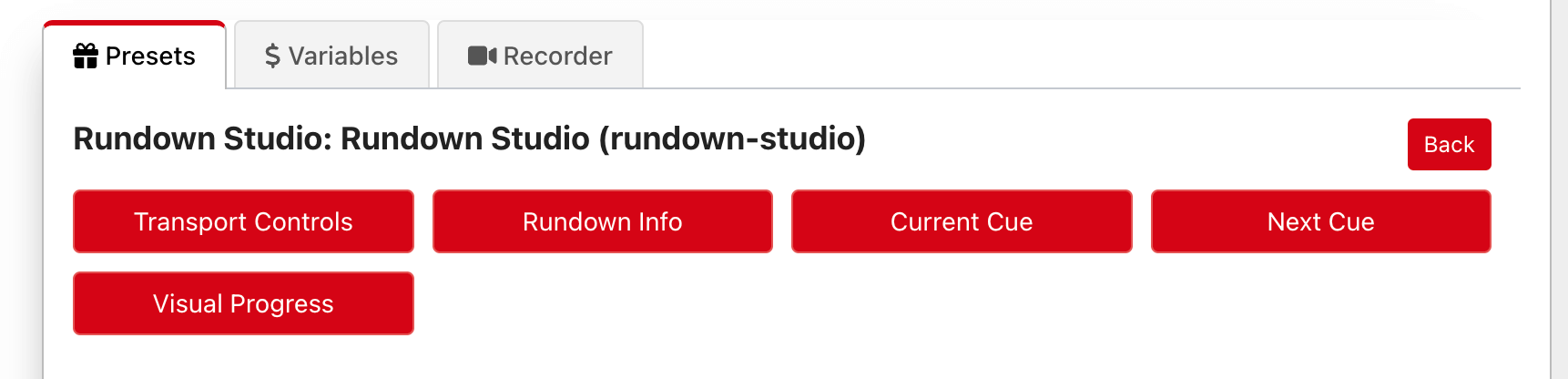
Drag any preset button straight onto your button grid - no configuration needed.
- Current Cue: Title, subtitle and running times of the current cue.
- Next Cue: Title, subtitle and duration of the next cue.
- Output Message: Show, hide and toggle the message on your outputs.
- Rundown Info: Details of the rundown like its name and status.
- Transport Controls: Play, Pause, previous cue and next cue.
- Visual Progress: Last five dots.
Variables
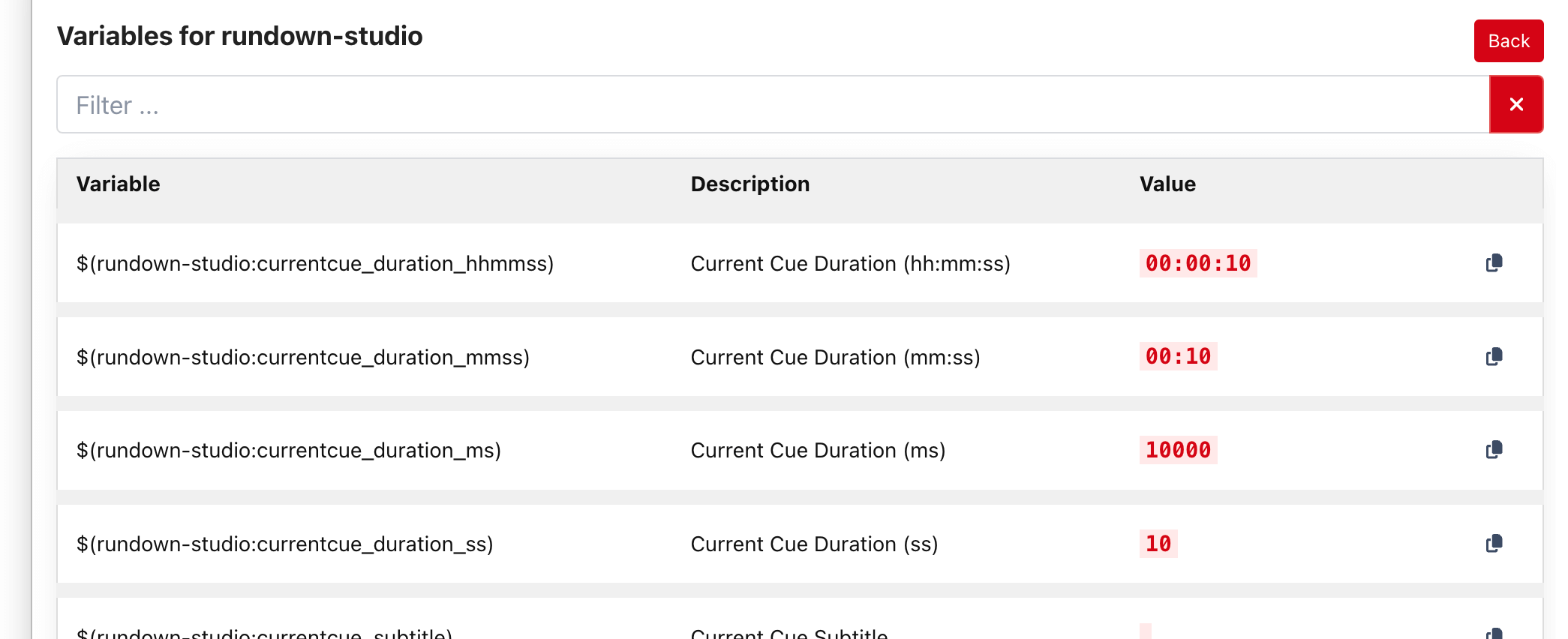
Use the built-in variables on buttons within your Companion setup. We have a huge range of variables including:
- Rundown name, start time and status
- Time of day
- Current Cue Duration (hh:mm:ss), (hh), (mm), (ss)
- Current Cue Title and Subtitle
- Next Cue Duration (hh:mm:ss), (hh), (mm), (ss)
- Next Cue Title and Subtitle
Actions
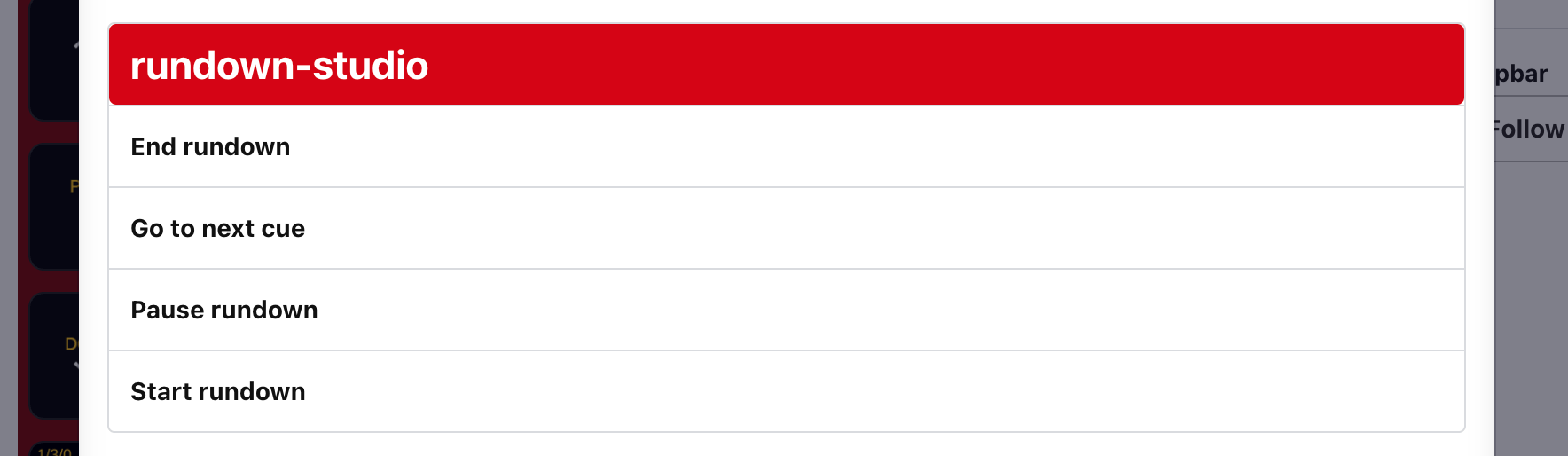
Build your own buttons and control your rundown with our list of actions included in the module.
Using the API with Companion
You can use these HTTP endpoints with Bitfocus’ Companion to talk directly with Rundown Studio.
Add the instance
Within Companion, add the “Generic HTTP” module.
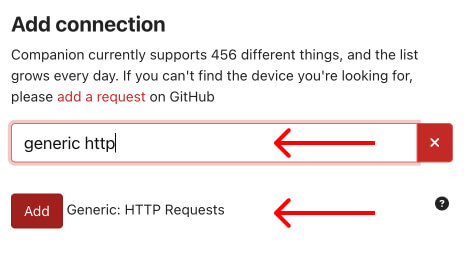
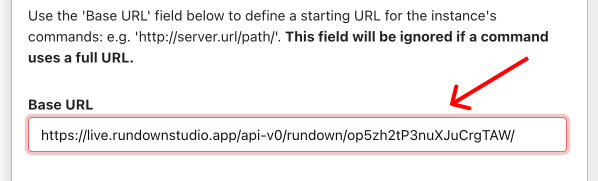
Configure the base URL just like we described it above, ensuring to include the rundown_id and ending with a forward slash.
https://api-v1.rundownstudio.app/rundowns/YOmm4UG2SG<rundown_id>/
Creating a button
Create a normal Companion button and in the actions list, choose “HTTP Get”.
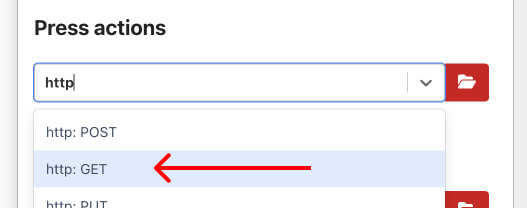
Now if we wanted to start our rundown with this button, we can enter start along with the token.
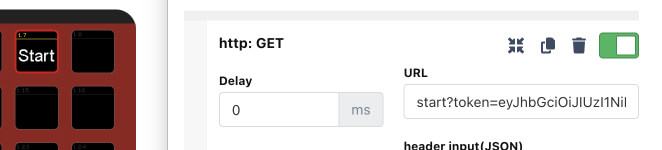
Pressing this button will start the rundown, as expected!
This same process can be done with the pause and next buttons too

Related
- Bitfocus Buttons - the same module running in Bitfocus Buttons.
- OBS Studio - drive OBS scenes from your running order.
- ProPresenter - drive ProPresenter from your running order.
- OnTheAir Video - roll VTs straight from the rundown.
- Columns - adding and managing columns.