Getting started
What is Rundown Studio?Create an accountRundown
Rundown basicsColumnsTemplatesSettingsGaps and overlapsTrashCell historyMentionsText variablesRunning a showSub-timersImport CSV rundownEvent
Event basicsSharing eventsAPI
Getting startedAPI reference ↗Build a rundown from CSVWorking with cell contentLive updates over SSESub-timers (experimental)Advanced usageError referenceMigrating from v0API v0 (deprecated)Integrations
Companion ModuleBitfocus ButtonsOBS StudioOnTheAir VideoProPresenterQLabSharing and outputs
Read-only rundownEditable rundownQuick access codeOutputPrompterPDF exportCSV exportAccount
Your teamSubscription and invoicesUpdates
ChangelogOnTheAir Video
Fire Softron OnTheAir Video clips straight from your rundown.
OnTheAir Video is Softron’s playout tool for the Mac. Both it and Rundown Studio have an official Bitfocus Companion module, so Companion can sit between the two: your rundown says which video belongs to a cue, and Companion tells OnTheAir Video to play it.
The result is one action for the operator. Jump to a cue in Rundown Studio and the right video loads and rolls, with nobody hunting for a clip in a playlist mid-show.
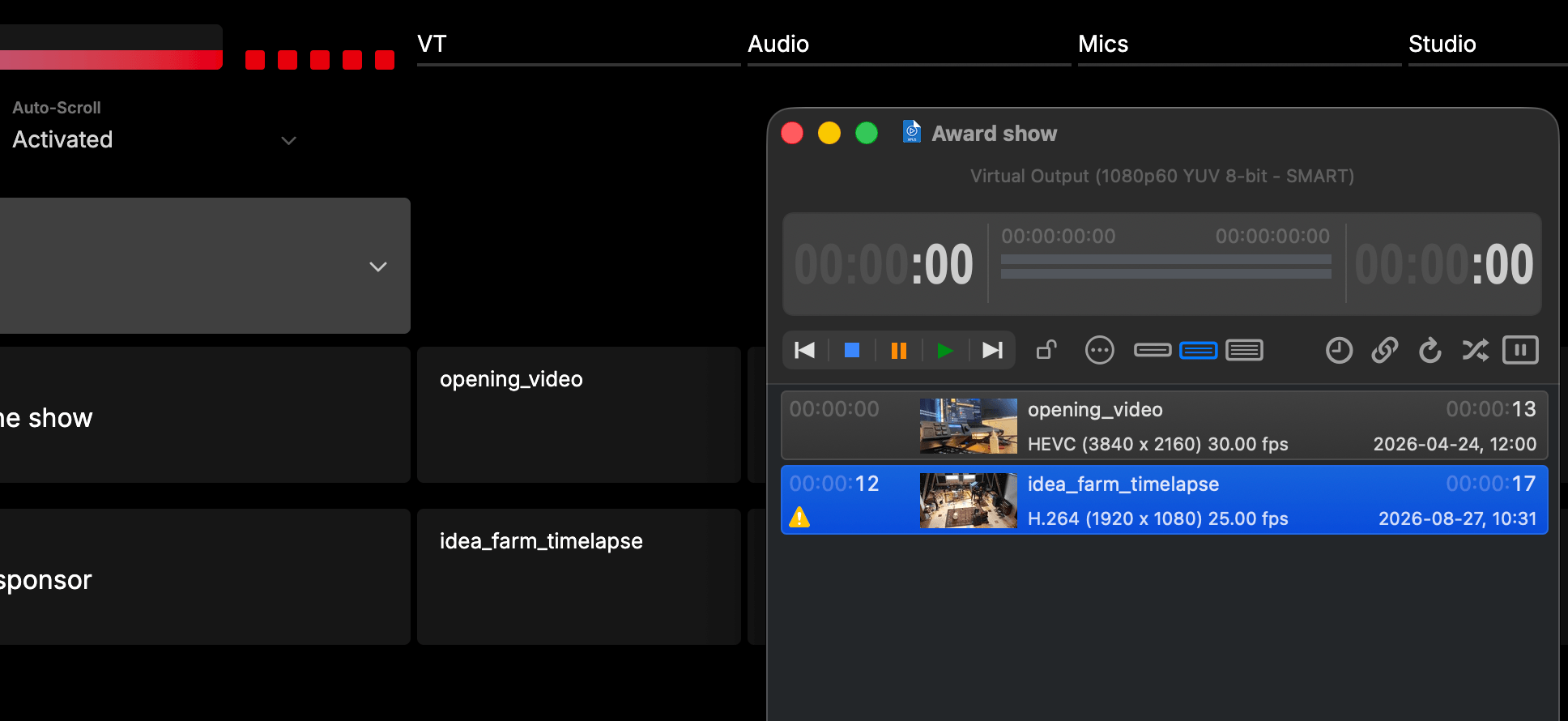
How it works
The two modules divide the job between them:
- You add a VT column to your rundown. In each cue that has a video, the cell holds the clip name.
- The Rundown Studio module publishes that cell as a Companion variable for whichever cue is currently active.
- A Companion trigger watches that variable. When it changes, it tells OnTheAir Video to play the clip with that name.
Because the trigger keys off the active cue, the rundown is the single source of truth. Rearrange your running order or swap a clip name in the rundown and playback follows, with no button remapping.
Before you start
You’ll need:
- Companion running on a machine that can reach the Mac running OnTheAir Video.
- OnTheAir Video 4 or later, full version. The REST API the module uses isn’t in the Express version.
- Your Rundown Studio API token and rundown ID.
1. Set up the VT column
In your rundown, add a column named VT. See Columns if you haven’t added one before.
In every cue that plays a video, put the clip’s name in the VT cell. The name has to match the item in your OnTheAir Video playlist exactly - same spelling, same capitalisation, no stray spaces. Leave the cell empty on cues that have no video.
Tip: The column has to be public for the module to publish it as a variable, and the name is what the variable is built from. A column called
VTbecomes$(rundown-studio:currentcue_vt).
2. Add the Rundown Studio module
In Companion, open Connections and add the Rundown Studio module, then give it your API Token and Rundown ID.
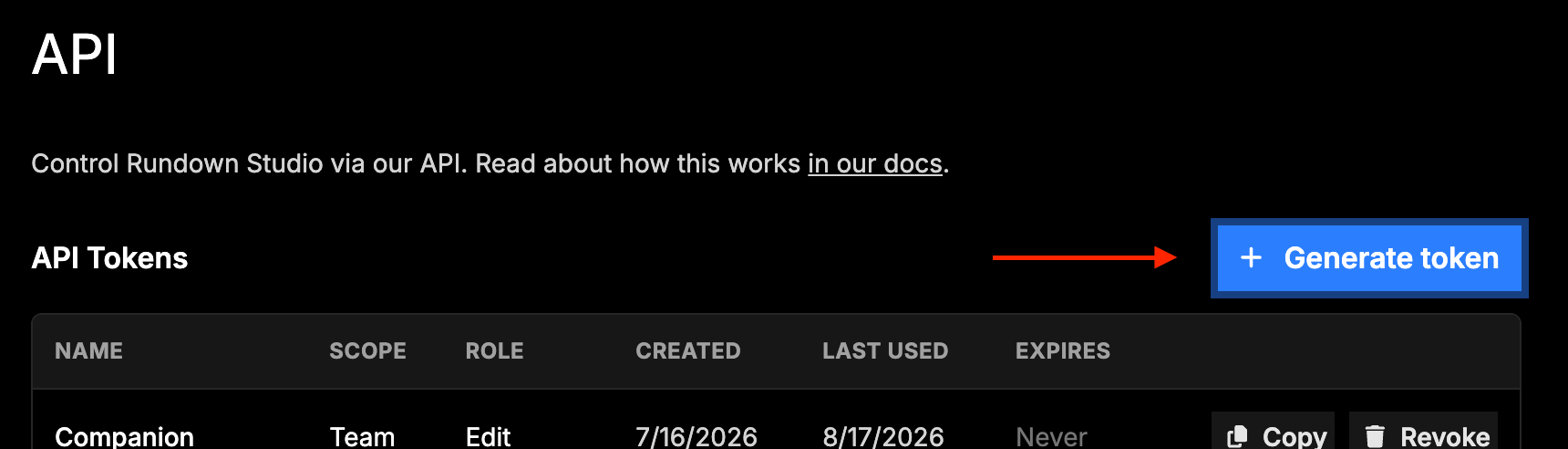
API tokens are generated from the API section of the Rundown Studio dashboard. Only team admins can generate or regenerate a token, but anyone on the team can read and use it.
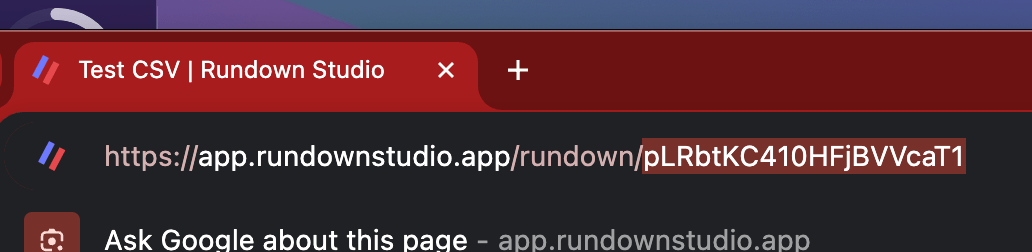
The rundown ID is in the URL of any rundown. For example, if your rundown URL is:
https://app.rundownstudio.app/rundown/pLRbtKC410HFjBVVcaT1
then the rundown ID is pLRbtKC410HFjBVVcaT1.
The full module setup is covered in Companion Module.
Check the variable
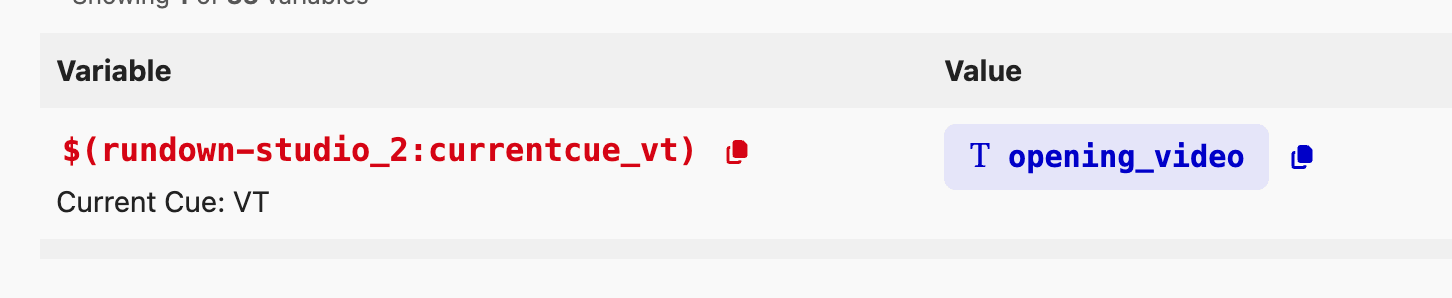
Once the connection is up, open the Variables tab and find the Rundown Studio module. You should see currentcue_vt alongside the built-in variables, holding the VT cell of whichever cue is active. If it’s missing, check the column is public and the name is spelled as you expect.
3. Add the OnTheAir Video module
Add the Softron: OnTheAir Video module as a second connection. It needs:
- Target IP - the address of the Mac running OnTheAir Video. Use
127.0.0.1if Companion is on that same Mac. - Target Port -
8081unless you’ve changed it.
The API has to be switched on in OnTheAir Video itself, under Preferences → API. Once connected, the module pulls in your open playlists and clips, and its variables list fills with the items it can see. That list is a handy way to check the clip names you’ve typed into the VT column.
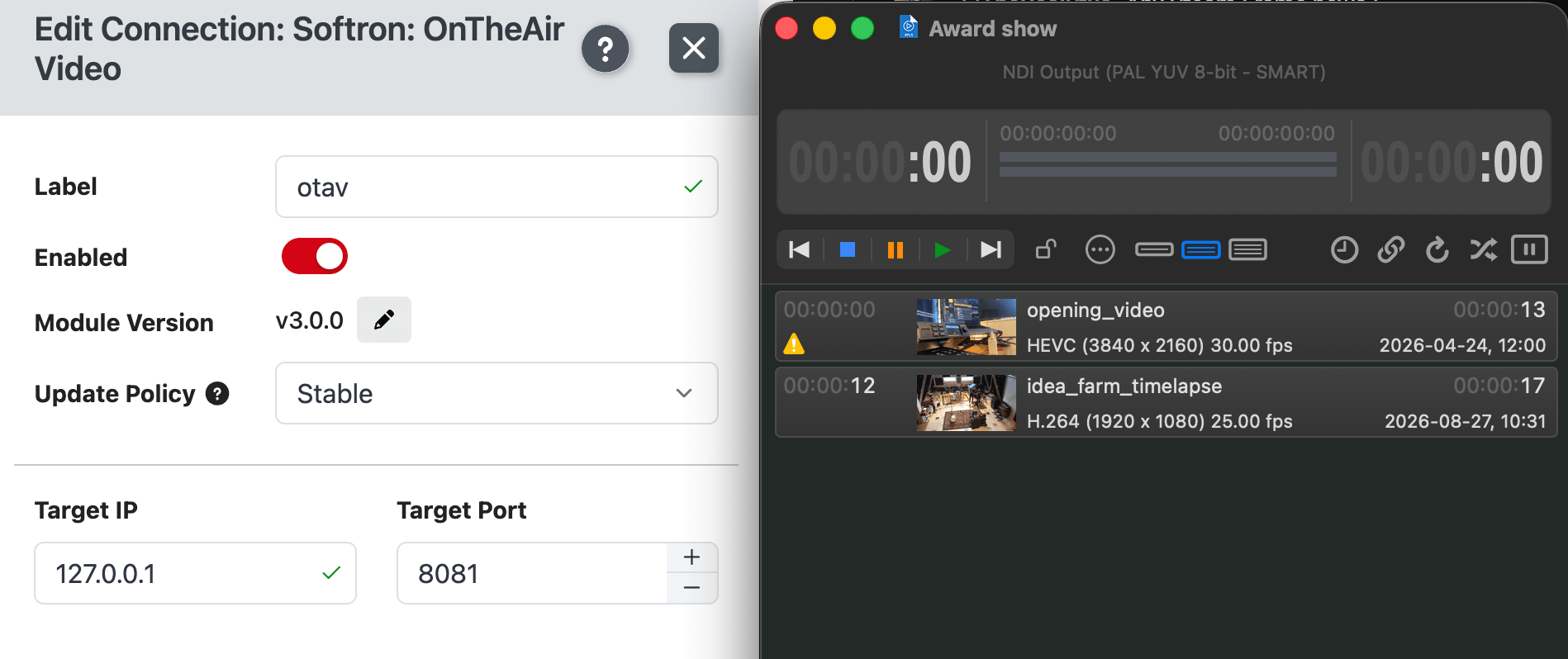
If the connection shows an error, be sure to double-check the IP address.
4. Build the trigger
This is the piece that ties the two together. In Companion, go to Triggers and add a new trigger.
Event: choose Variable value changes and set it to $(rundown-studio:currentcue_vt). The trigger now fires whenever the active cue’s VT cell is different from the last one.
Condition: add a Variable value condition so an empty cell doesn’t fire anything. Set it to check that $(rundown-studio:currentcue_vt) is not equal to an empty value. Without this, moving onto a cue with no video sends a play request for a clip named nothing.
Action: add the OnTheAir Video Play action and fill in:
- Playlist - the name or index of your playlist. Indexes are zero based, so the first playlist is
0. - Clip index/name -
$(rundown-studio:currentcue_vt)
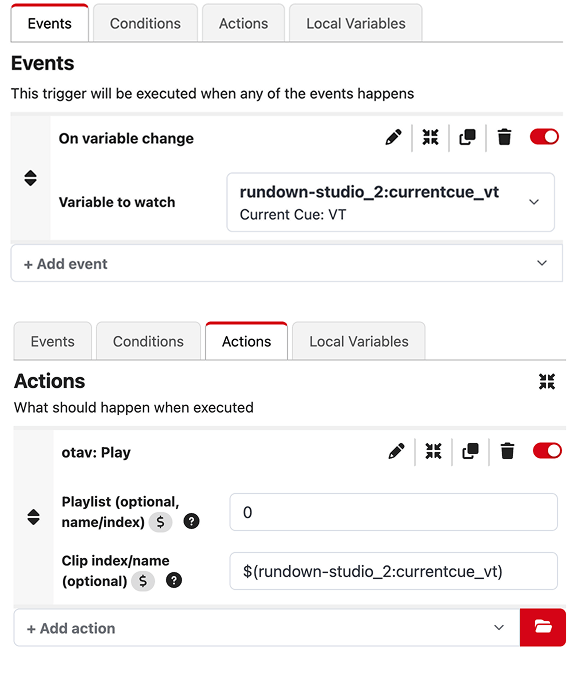
That’s the whole integration. Jump to a cue in Rundown Studio, the VT variable updates, the trigger fires, and OnTheAir Video plays that clip.
Load without playing
If you’d rather arm the clip and roll it by hand, swap the Play action for Play clip at position with a position of 0 and follow it with a Pause. The clip sits ready on its first frame, and an operator hits a Companion button running Resume when they want it.
Going the other way
The same two modules work in reverse, letting playback drive the rundown. Build a Companion button that runs the OnTheAir Video Play action and the Rundown Studio Go to next cue action together, and one press rolls the video and moves the rundown on.
You can also use the OnTheAir Video module’s Time remaining feedback to colour a button as a clip runs out, giving the operator a countdown to the next cue. The Rundown Studio module’s own variables - $(rundown-studio:currentcue_timeleft_mmss) and the rest - sit alongside it on the same page, so one surface shows both the rundown and playback.
Useful extras
Some other things worth putting on the same page:
- Clip times on the rundown surface.
$(softron-ontheairvideo:clipRemaining)puts the time left on the current clip on a button, so the director can see how long the VT has to run. - Skip and stop. The Skip to next clip, Skip to previous clip and Stop actions give you manual overrides when a VT has to be dropped.
- A second column. If some cues need a clip loaded but not played, add a
VT MODEcolumn and use its variable in a trigger condition to pick between playing and arming.
Troubleshooting
If a cue doesn’t fire its video, work down the chain:
- Is the variable right? Check
$(rundown-studio:currentcue_vt)in Companion’s Variables tab while sitting on the cue. If it’s empty or wrong, the problem is in the rundown, not Companion. - Does the clip name match? Names must match the playlist item exactly. A trailing space or different capitalisation is enough to miss.
- Is the playlist right? The Play action needs the playlist that actually holds the clip. Remember indexes start at
0. - Has the playlist changed? If you’ve added or renamed clips since Companion connected, run the Update playlist info action so the module re-reads them.
- Is the connection up? Both modules should show as connected in the Connections list rather than an error state.
Turning on Verbose Mode in the Rundown Studio module’s advanced config writes more detail to the debug log, which usually points straight at the problem.
Related
- Companion Module - full setup for the Rundown Studio module.
- Bitfocus Buttons - the same module running in Bitfocus Buttons.
- Columns - adding and managing columns.
- OBS Studio - the same trigger pattern driving scene switching.
- QLab - trigger your rundown from QLab cues.