Getting started
What is Rundown Studio?Create an accountRundown
Rundown basicsColumnsTemplatesSettingsGaps and overlapsTrashCell historyMentionsText variablesRunning a showImport CSV rundownEvent
Event basicsSharing eventsAPI
Getting startedAPI reference ↗Build a rundown from CSVWorking with cell contentLive updates over SSEAdvanced usageError referenceMigrating from v0API v0 (deprecated)Integrations
Companion ModuleBitfocus ButtonsOBS StudioOnTheAir VideoProPresenterQLabSharing and outputs
Read-only rundownEditable rundownQuick access codeOutputPrompterPDF exportCSV exportAccount
Your teamSubscription and invoicesUpdates
ChangelogQLab
Trigger your Rundown Studio show from QLab cues.
QLab is the go-to playback tool for live shows and theatre. With a little setup, QLab can talk to the Rundown Studio API, so a cue firing in QLab can jump your rundown straight to the matching cue. Keep QLab and your rundown in sync without anyone touching a second screen.
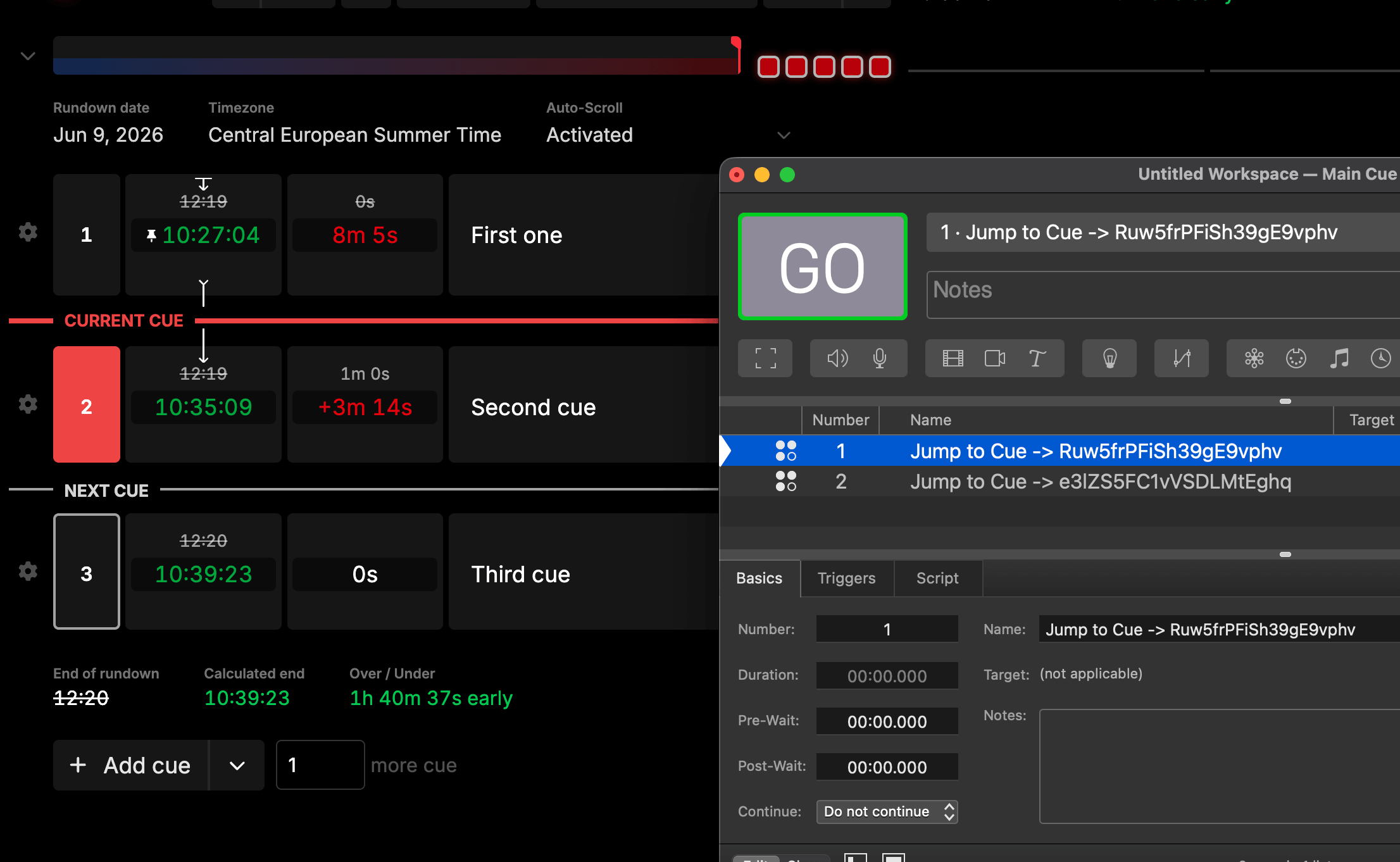
How it works
Rundown Studio has a public HTTP API. One of its endpoints lets you jump to a specific cue:
PUT https://api-v1.rundownstudio.app/rundowns/YOmm4UG2SG<rundownId>/cues/<cueId>/jump-to-cue?token=<API_TOKEN>When that request is received, your rundown jumps to the cue you specified. You’ll fire it from a QLab Script cue running curl. The plan is simple:
- Get your API token.
- Copy the rundown ID and the cue ID you want to jump to.
- Fire that request from a QLab Script cue when the matching QLab cue becomes active.
Before you start
1. Get your API token
The API uses a token so that only you and your team can control your rundown.
API tokens are generated from the API section of the Rundown Studio dashboard. Only team admins can generate or regenerate a token, but anyone on the team can read and use it.
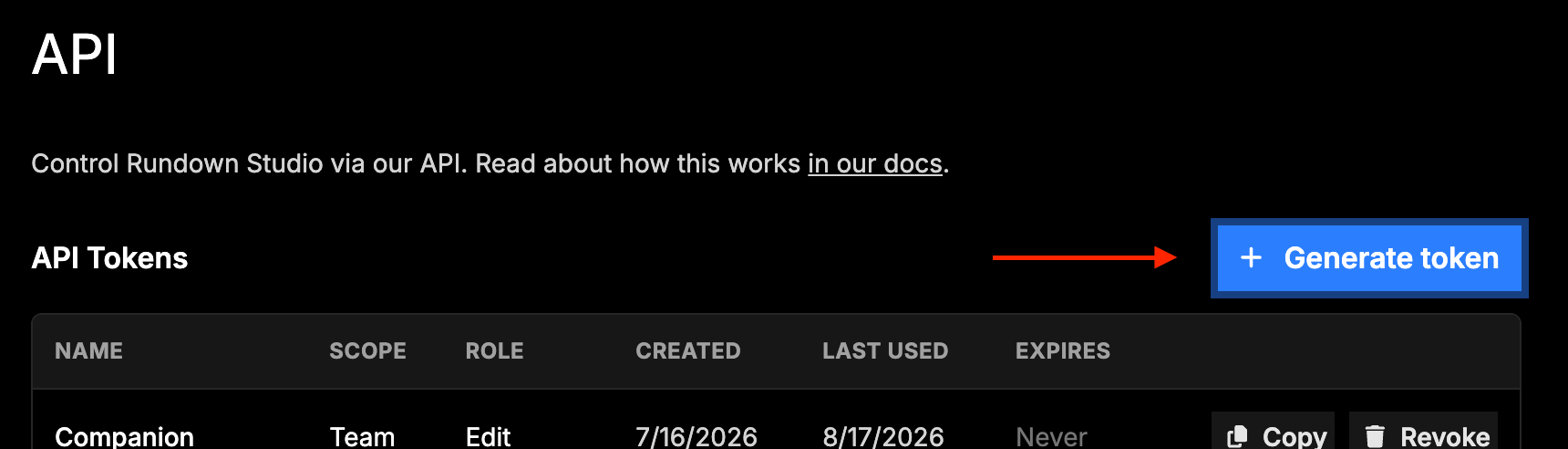
Copy the token to your clipboard - you’ll need it in QLab. For the full walkthrough, see the API documentation.
2. Get your rundown ID
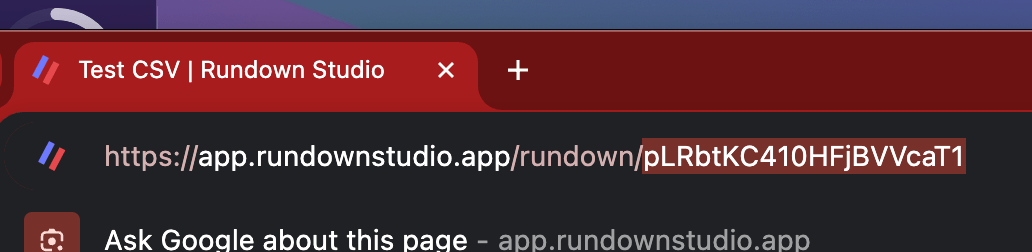
The rundown ID is in the URL of any rundown. For example, if your rundown URL is:
https://app.rundownstudio.app/rundown/pLRbtKC410HFjBVVcaT1
then the rundown ID is pLRbtKC410HFjBVVcaT1.
3. Copy the cue ID
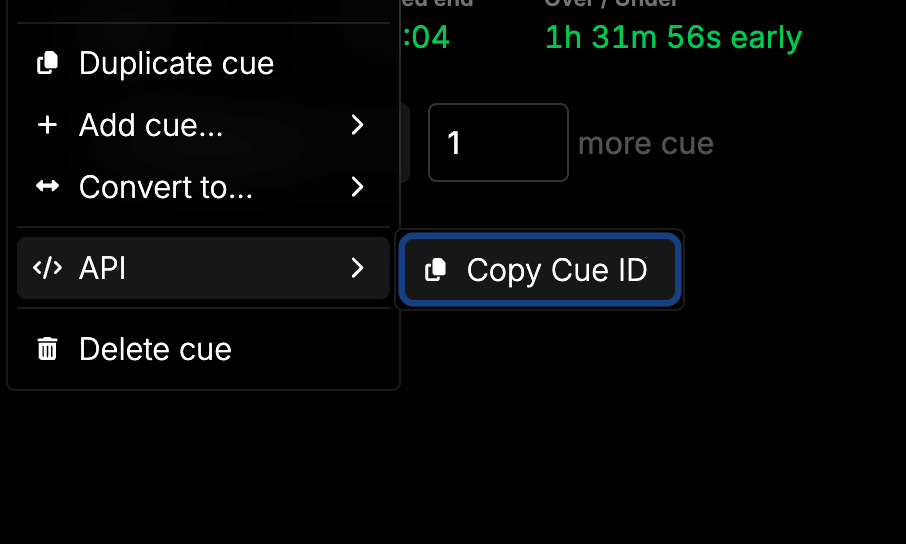
In your rundown, find the cue you want QLab to jump to. Open the cue’s menu, choose API, then click Copy Cue ID. You’ll add one QLab cue per Rundown Studio cue you want to trigger, so grab the ID for each one as you go.
Sending the request from QLab
The Rundown Studio API is served over HTTPS. To call it from QLab, use a Script cue that runs curl. This works on any Mac running QLab and handles HTTPS and the PUT method cleanly.
Why a Script cue and not a Network cue? QLab Network cues send raw plain text and can’t perform the TLS (HTTPS) handshake the API requires, so they never reach it. A Script cue shells out to
curl, which speaks HTTPS natively. The Script cue is the way to do this.
Build the Script cue
- In QLab, add a cue and set its type to Script.

- In the cue’s Script tab, paste the following, replacing the rundown ID, cue ID, and API token with your own:
do shell script "curl -s -L -X PUT 'https://api-v1.rundownstudio.app/rundowns/YOmm4UG2SGpLRbtKC410HFjBVVcaT1/cues/Ruw5frPFiSh39gE9vphv/jump-to-cue?token=MY_API_TOKEN'"- Click Compile. If there’s a typo, QLab shows the error right there. No error means it’s ready.
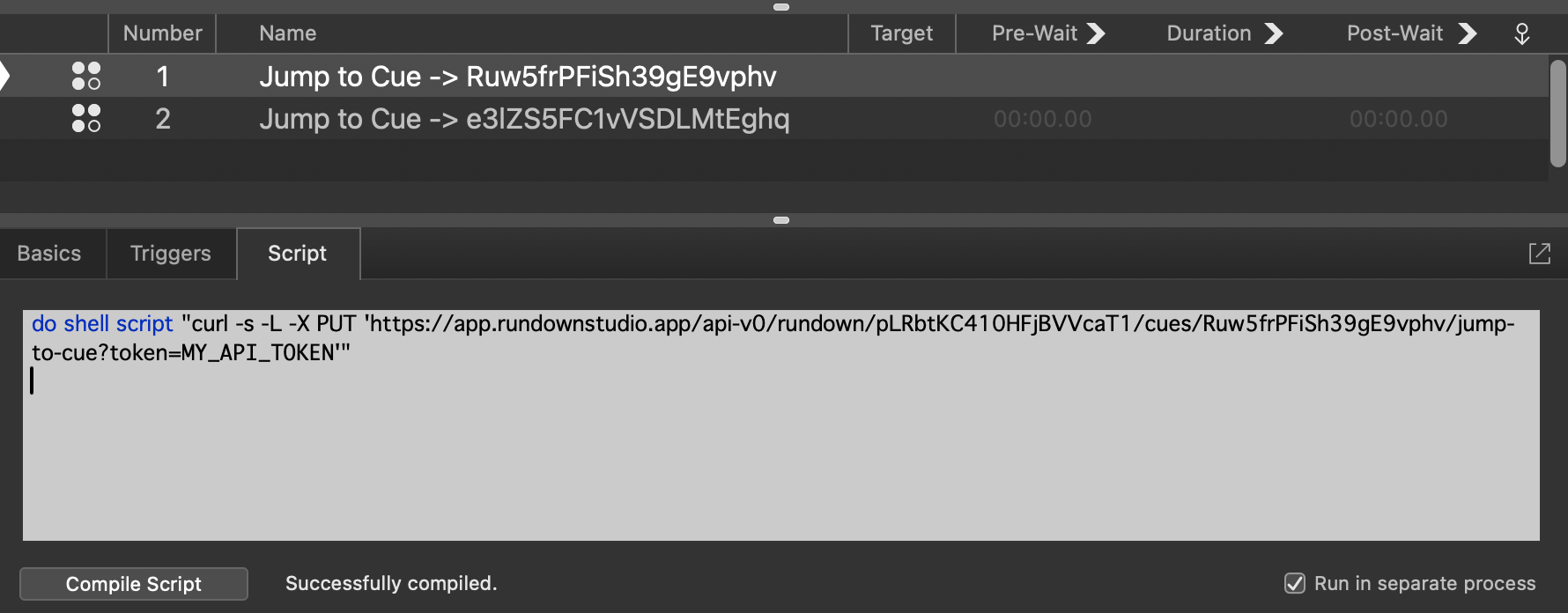
- Place this Script cue wherever you want the jump to happen - for example, in the same cue list position as the QLab cue that should move your rundown along. When the Script cue fires, your rundown jumps to the matching cue.
To trigger a different Rundown Studio cue elsewhere in your show, duplicate the Script cue and change the cue ID in the URL.
Tip: You can also pass the token as a Bearer header instead of a query parameter:
do shell script "curl -s -L -X PUT -H 'Authorization: Bearer YOUR_API_TOKEN' 'https://api-v1.rundownstudio.app/rundowns/YOmm4UG2SG<rundownId>/cues/<cueId>/jump-to-cue'"
Transport controls
Jumping to a specific cue isn’t the only thing you can drive. If your QLab cue list runs in step with your rundown, you may just want to advance, start, or pause it. These are simple GET requests - no cue ID, no -X PUT:
-- Advance to the next cue
do shell script "curl -s -L 'https://api-v1.rundownstudio.app/rundowns/YOmm4UG2SGYOUR_RUNDOWN_ID/next?token=YOUR_API_TOKEN'"
Swap next for start or pause to run or pause the rundown. Because the same script works for every cue, you can copy it onto as many QLab cues as you like without editing anything per cue.
Test it
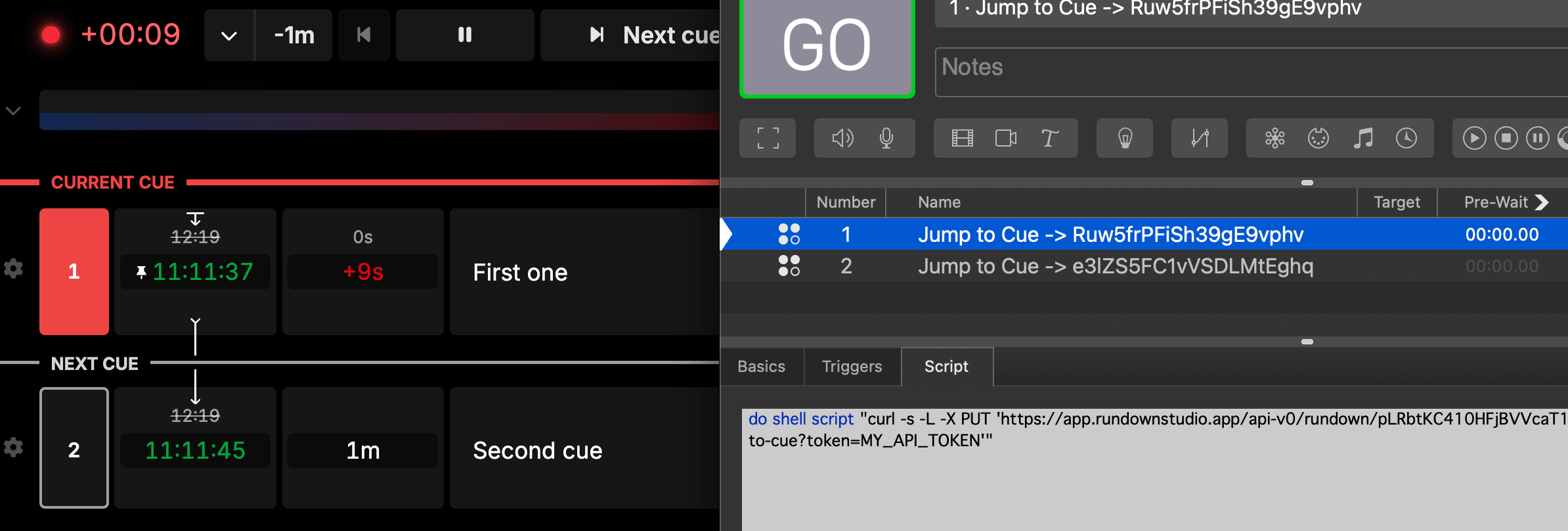
With QLab and your rundown open side by side, fire the cue in QLab. Your rundown should jump to the cue ID you set.
Troubleshooting
If nothing happens when the cue fires, check that:
- The API token is correct and current (regenerating a token invalidates the old one).
- The rundown ID and cue ID are copied exactly, with no extra spaces.
- The Mac running QLab has internet access.
- The script compiles without errors in the Script cue editor.
Test your request in Terminal
The fastest way to tell whether the problem is your request or your QLab setup is to run the same curl command directly. Open Terminal on the Mac and run this, with your own values filled in:
curl -s -L -X PUT "https://api-v1.rundownstudio.app/rundowns/YOmm4UG2SGpLRbtKC410HFjBVVcaT1/cues/YOUR_CUE_ID/jump-to-cue?token=YOUR_API_TOKEN"If your rundown jumps to that cue, the request is correct and the problem is in your QLab cue setup. If it doesn’t, double-check your IDs and token.
Related
- API documentation - full endpoint reference and the Swagger docs.
- Companion Module - control your rundown from a Stream Deck.
- OBS Studio - drive OBS scenes from your running order.
- ProPresenter - drive ProPresenter from your running order.