Getting started
What is Rundown Studio?Create an accountRundown
Rundown basicsColumnsTemplatesSettingsGaps and overlapsTrashCell historyMentionsText variablesRunning a showSub-timersImport CSV rundownEvent
Event basicsSharing eventsAPI
Getting startedAPI reference ↗Build a rundown from CSVWorking with cell contentLive updates over SSESub-timers (experimental)Advanced usageError referenceMigrating from v0API v0 (deprecated)Integrations
Companion ModuleBitfocus ButtonsOBS StudioOnTheAir VideoProPresenterQLabSharing and outputs
Read-only rundownEditable rundownQuick access codeOutputPrompterPDF exportCSV exportAccount
Your teamSubscription and invoicesUpdates
ChangelogSub-timers
Add extra timers to a cue for the things that run alongside it - a walk-on, a VT, a Q&A window or a changeover.
What are sub-timers?
Every cue has its own duration, but plenty of things inside a cue need timing too. A keynote might have a 5 minute Q&A at the end, a segment might roll a 1:30 VT, or a stage manager might need to count up how long a changeover is really taking.
Sub-timers let you add up to 20 extra timers to any cue. They sit directly under the cue’s duration, and each one can count down or up, run with the cue or on its own, and show on your outputs.
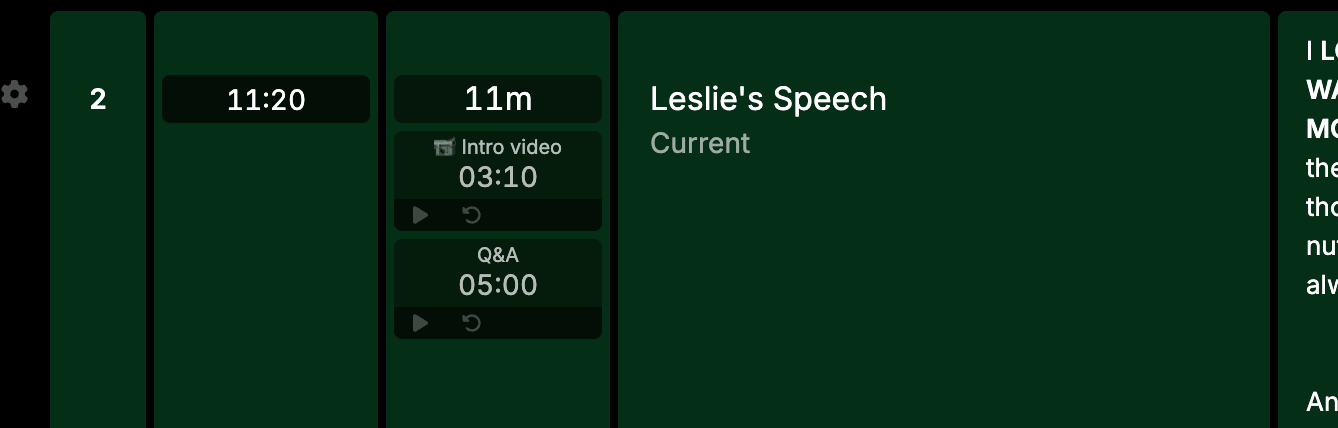
Add a sub-timer
Hover over a cue and click + Sub timer under the duration. Fill in the settings and click Add.
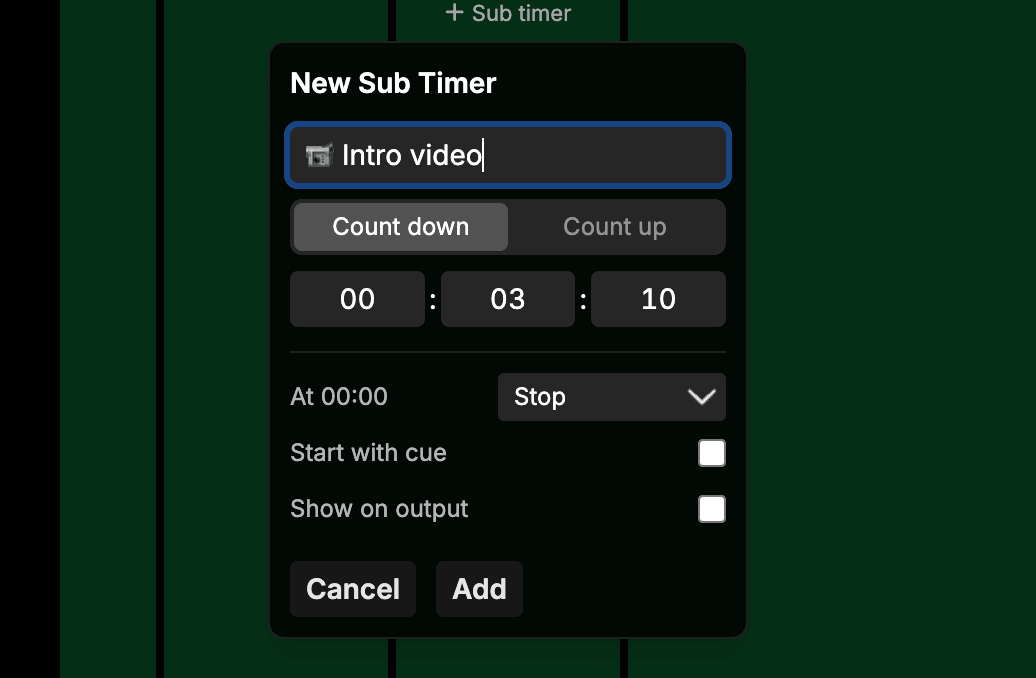
Each sub-timer has the following settings:
| Setting | Options | Default |
|---|---|---|
| Name | Optional, up to 100 characters | Empty |
| Direction | Count down or Count up | Count down |
| Duration | Any length up to 100 hours (count down only) | 00:00:00 |
| At 00:00 | Stop or Keep counting (count down only) | Stop |
| Start with cue | Runs the timer automatically while its cue is live | Off |
| Show on output | Shows the timer on rundown outputs | Off |
At 00:00: Stop or Keep counting
- Stop - the timer holds at 00:00 and turns amber.
- Keep counting - the timer runs on into overtime, shown in red with a
+prefix, so you can see exactly how far over you are.
Edit or remove a sub-timer
Click the timer to open its settings. Change what you need and click Save, or use the trash icon to remove it.
Clicking outside the popover saves your changes, and Escape discards them.
Reorder sub-timers
Drag a sub-timer by the grip on its right to move it up or down the list.
Running sub-timers
Each sub-timer has its own controls underneath it:
- Start / Pause - start the timer, pause it, and resume from where it left off.
- Reset - visible on hover. Stops the timer and returns it to its full duration (or to 00:00 for a count up timer).
Sub-timers run as part of the show, so the show has to be started before you can run them. Until then the controls are disabled.
If a countdown set to Stop has reached 00:00, reset it before starting it again.
Start with cue
A sub-timer with Start with cue turned on follows its cue. It starts when the cue goes live, pauses when the show pauses, and stops when the show moves on. These timers are marked with a bolt icon.
As soon as you press Start, Pause or Reset on one of these timers yourself, you take over. From then on it runs independently of the cue, and the bolt icon greys out to show it.
Independent timers
A sub-timer without Start with cue only runs when you start it. It keeps running even after the show moves on to the next cue, which is useful for things that span more than one cue.
Resetting the rundown
Resetting the rundown timing returns every sub-timer to its starting state, ready for the next run.
Who can do what
- Editors can add, edit, remove and reorder sub-timers. They can’t be changed on cues that have Prevent edits turned on.
- Show callers can start, pause and reset sub-timers, just like the main transport controls, but can’t change their settings.
- Viewers can see sub-timers but not control them.
Duplicating cues and rundowns
When you duplicate a cue or group, duplicate a rundown, or create a rundown from a template, the sub-timers are copied too. Each copy gets its own new ID, so the copies run independently of the originals.
Sub-timers and the API
You can list sub-timers and start, pause or reset them from the public API - handy for Stream Deck buttons or Companion.
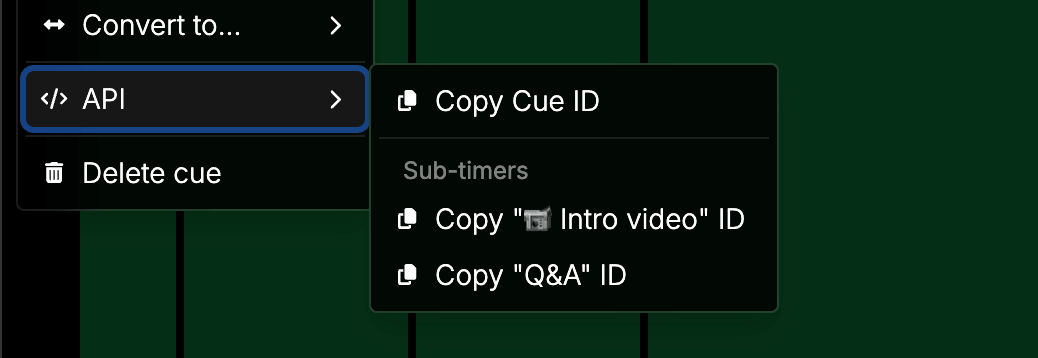
Each sub-timer has an ID. To copy it, open the cue’s settings (cog) menu, choose API, and under Sub-timers click Copy “<name>” ID.