Getting started
What is Rundown Studio?Create an accountRundown
Rundown basicsColumnsTemplatesSettingsGaps and overlapsTrashCell historyMentionsText variablesRunning a showSub-timersImport CSV rundownEvent
Event basicsSharing eventsAPI
Getting startedAPI reference ↗Build a rundown from CSVWorking with cell contentLive updates over SSESub-timers (experimental)Advanced usageError referenceMigrating from v0API v0 (deprecated)Integrations
Companion ModuleBitfocus ButtonsOBS StudioOnTheAir VideoProPresenterQLabSharing and outputs
Read-only rundownEditable rundownQuick access codeOutputPrompterPDF exportCSV exportAccount
Your teamSubscription and invoicesUpdates
ChangelogBitfocus Buttons
Control your Rundown Studio show from Bitfocus Buttons.
Bitfocus Buttons is Bitfocus’ control software for live production. It drives the full Elgato Stream Deck lineup, touch screens, or just a regular web browser.
There’s an official Rundown Studio module, so you don’t need to build HTTP requests by hand. Add the module, enter a token and rundown ID, and you get transport controls, live show data on your buttons, and output message control out of the box.
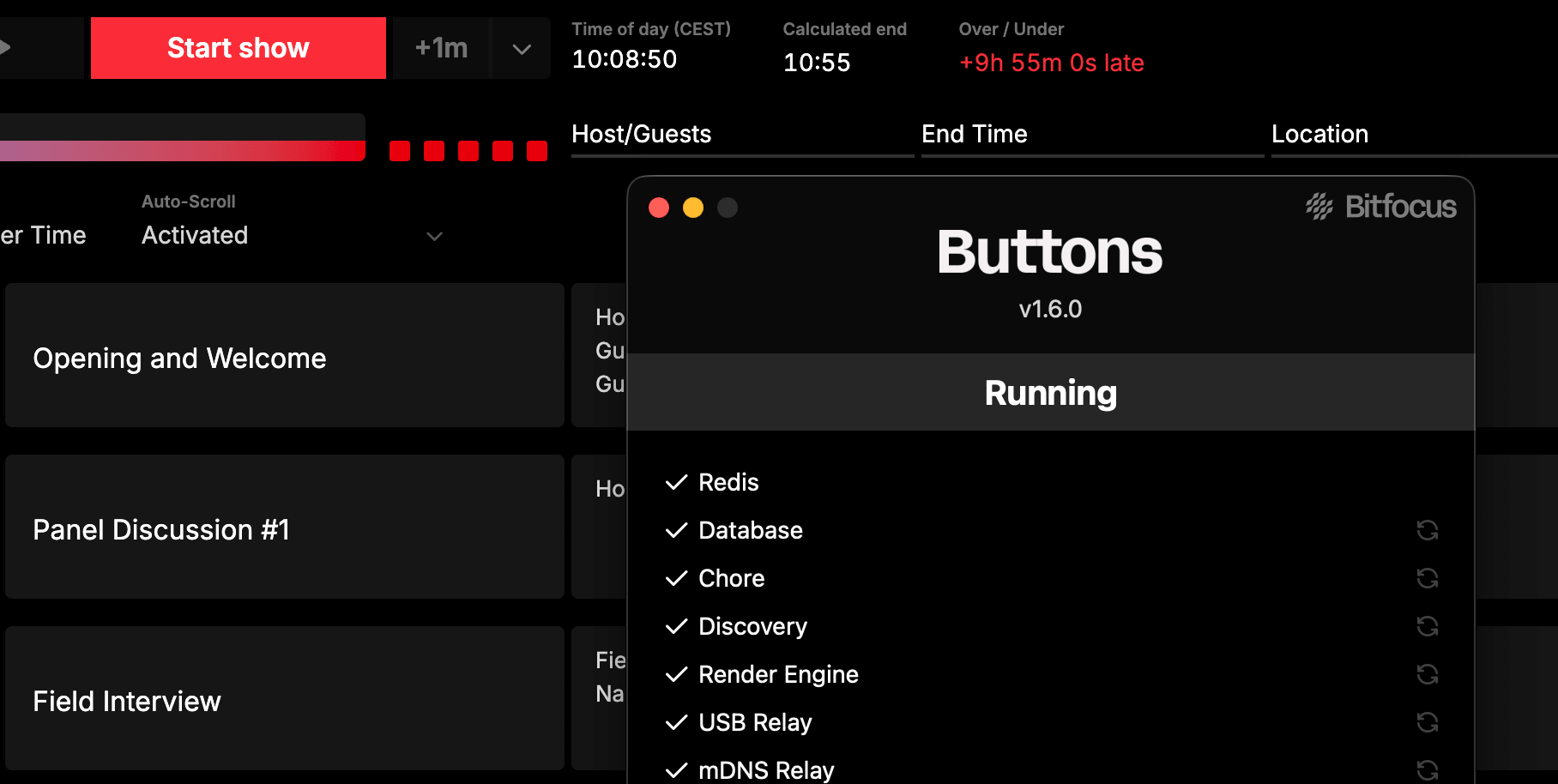
Add the module
In Buttons, open Connections and add the Rundown Studio module.
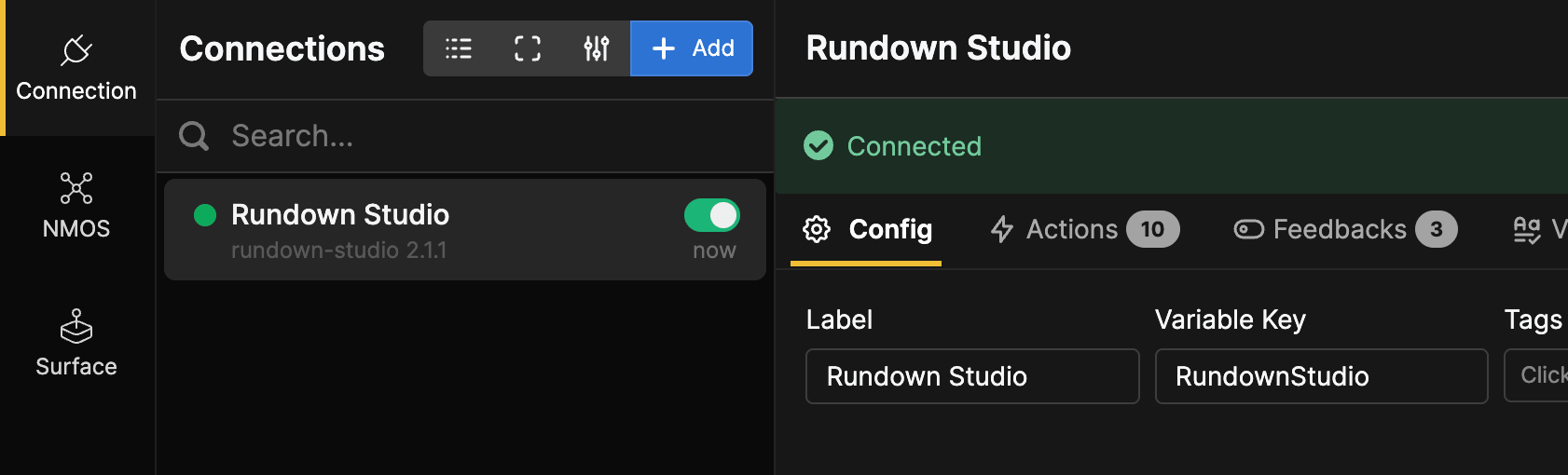
Configure the module
The module needs two things: an API Token and a Rundown ID.
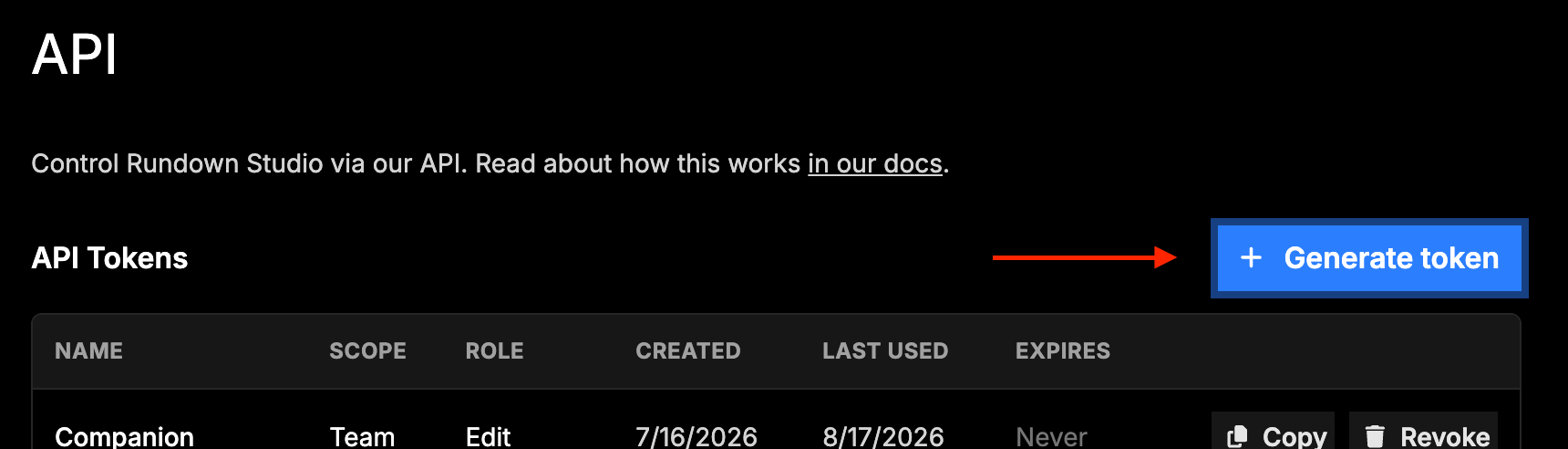
API Token
API tokens are generated from the API section of the Rundown Studio dashboard. Only team admins can generate or regenerate a token, but anyone on the team can read and use it.
Rundown ID
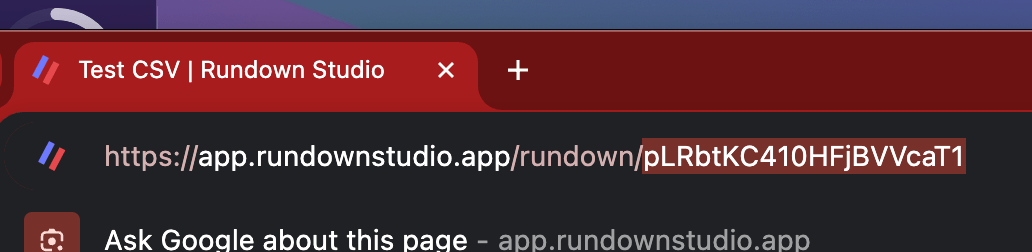
The rundown ID is in the URL of any rundown. For example, if your rundown URL is:
https://app.rundownstudio.app/rundown/pLRbtKC410HFjBVVcaT1
then the rundown ID is pLRbtKC410HFjBVVcaT1.
Paste both into the module config and save.
Once connected, the module keeps itself in sync with your rundown over a live event stream, so timers and cue titles update as the show runs rather than on a polling delay.
Advanced configuration
Tick Advanced Configuration to reveal options most shows never need:
- API Base URL - serves both the REST endpoints and the live event stream. Only change this to point at another environment.
- Update Interval (ms) - how often the module recalculates timers from the last data received. Defaults to 100.
- Verbose Mode - logs more detail to the debug log, useful when troubleshooting.
Leave these alone unless you’ve been told otherwise.
Presets
The module ships with presets so you can build a working page by dragging buttons in, with no configuration.
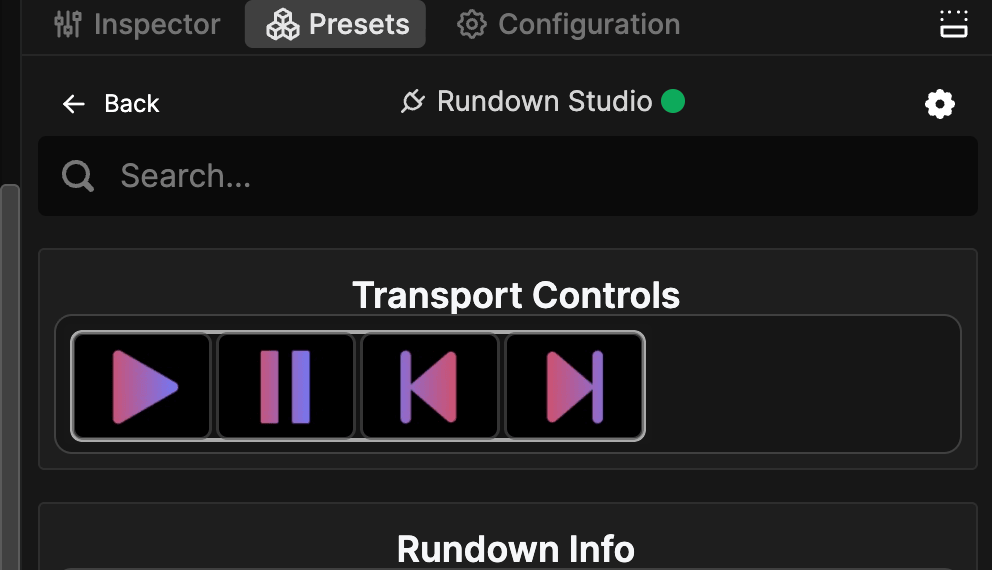
- Transport Controls - start, pause, and move between cues.
- Rundown Info - name, status, and planned times.
- Current Cue - title, subtitle, and running times.
- Next Cue - title, subtitle, and duration.
- Visual Progress - a row of dots that empties as the cue runs down.
- Output Message - show, hide, and toggle the message on your outputs.
Actions
Build your own buttons with the module’s actions:
| Action | What it does |
|---|---|
| Start rundown | Starts the rundown running |
| Pause rundown | Pauses the running rundown |
| Go to next cue | Advances to the next cue |
| Go to previous cue | Steps back to the previous cue |
| Add time to current cue | Extends the active cue by a number of seconds |
| Remove time from current cue | Shortens the active cue by a number of seconds |
| Output Message: Show | Shows the output message |
| Output Message: Hide | Hides the output message |
| Output Message: Toggle visibility | Flips the message between shown and hidden |
| Output Message: Set | Updates the text, colour, bold, underline, and/or visibility |
Add and Remove time take a number of seconds, so you can build “+30s” and “-30s” buttons for a talkback operator to trim on the fly.
Output Message: Set leaves every field it isn’t given unchanged, so one button can update the text while another only flips the colour. That makes it easy to keep a standing message and change one thing about it mid-show. Read more about output messages.
Feedbacks
Feedbacks restyle a button based on what the rundown is doing:
- Rundown State - colour a button by running, paused, or stopped.
- Current cue is running over - flag when the active cue has passed its duration.
- Visual progress: X or less seconds remaining - used by the Visual Progress presets to empty a row of dots as time runs out.
Variables
Use the module’s variables to put live show data on any button.
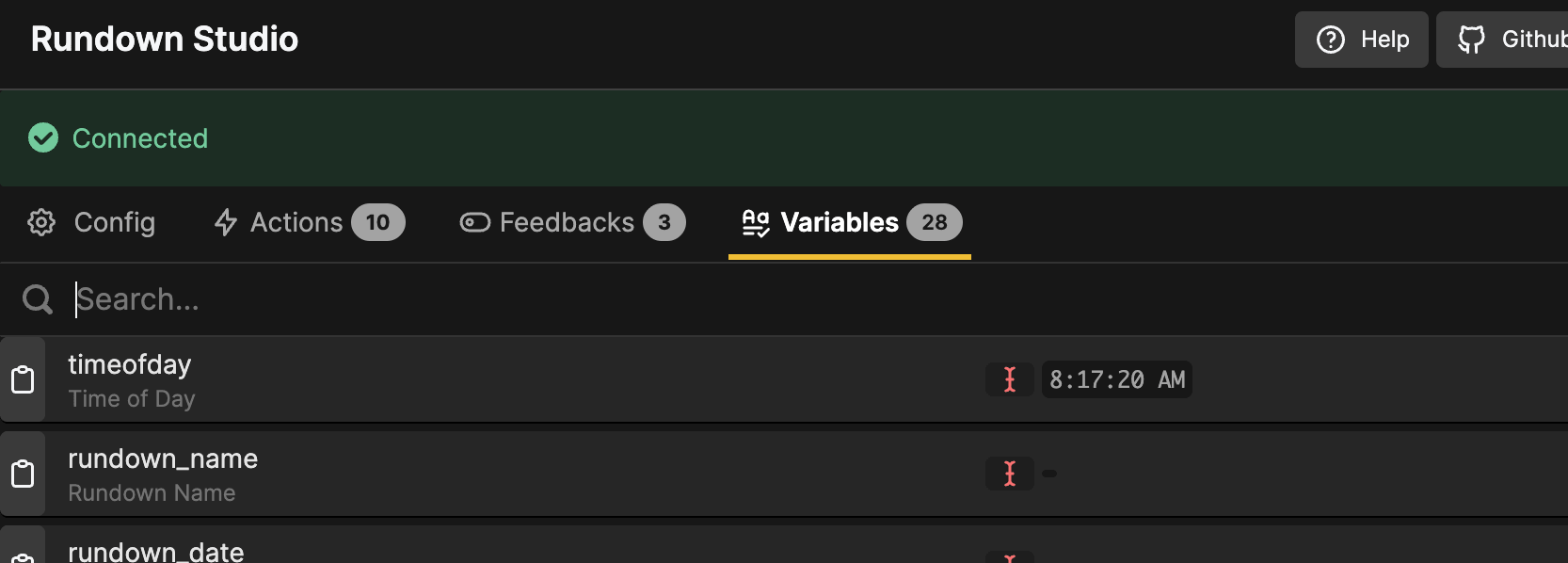
- Time -
$(rundown-studio:timeofday)and$(rundown-studio:timezone) - Rundown - name, date, status, state, and planned start time, end time, and length
- Current cue - title, subtitle, plus duration, time left, and time elapsed
- Next cue - title, subtitle, and duration
Every timing variable comes in four formats - _ms, _ss, _mmss, and _hhmmss - so you can pick what fits the button. For example, $(rundown-studio:currentcue_timeleft_mmss) shows the time left on the active cue as 04:30.
Column variables
The module also creates a variable for each public column on your rundown, holding the plain-text content of that column for the current cue. A column named AUDIO becomes $(rundown-studio:currentcue_audio).
Column names are lowercased, and anything that isn’t a letter or number becomes an underscore. If a column name would collide with a built-in variable - a column literally called Title, say - a number is added to the end, giving currentcue_title_2.
This is the quickest way to get show-specific data onto a surface: add a CAMERA column to your rundown and every operator can see the shot for the current cue on a button.
Troubleshooting
If buttons don’t do anything, check that:
- The API token is correct and current (regenerating a token invalidates the old one).
- The rundown ID is copied exactly, with no extra spaces or a trailing slash.
- The machine running Buttons has internet access.
- The connection shows as connected in the Connections list rather than an error state.
Turning on Verbose Mode in the advanced config writes more detail to the debug log, which usually points straight at the problem.
Using the API instead
If you’d rather not use the module - or you want to drive something the module doesn’t cover - Buttons can talk to the Rundown Studio API through the Generic HTTP Requests connection.
Set the connection’s Base URL to your rundown’s API root, ending with a forward slash:
https://api-v1.rundownstudio.app/rundowns/YOmm4UG2SGpLRbtKC410HFjBVVcaT1/Add your token once in the connection’s Headers field so every action is authenticated:
{ "Authorization": "Bearer YOUR_API_TOKEN" }Then give each button an HTTP GET action with a short URI - start, pause, or next. To jump to a specific cue, copy the cue ID from the cue’s menu under API → Copy Cue ID and use an HTTP PUT action with:
cues/Ruw5frPFiSh39gE9vphv/jump-to-cue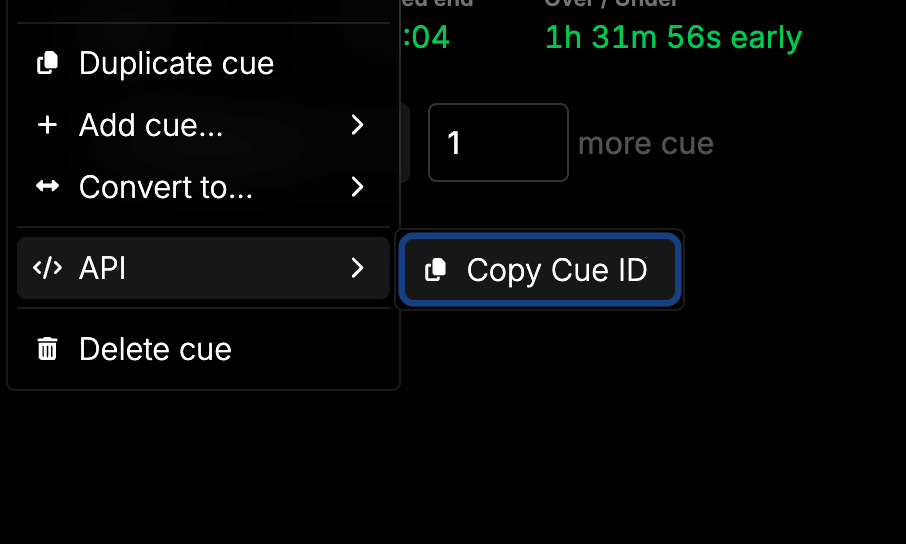
Related
- Companion Module - the same module running in Bitfocus Companion.
- API documentation - full endpoint reference and the Swagger docs.
- OBS Studio - drive OBS scenes from your running order.
- ProPresenter - drive ProPresenter from your running order.
- QLab - trigger your rundown from QLab cues.