Getting started
What is Rundown Studio?Create an accountRundown
Rundown basicsColumnsTemplatesSettingsGaps and overlapsTrashCell historyMentionsText variablesRunning a showSub-timersImport CSV rundownEvent
Event basicsSharing eventsAPI
Getting startedAPI reference ↗Build a rundown from CSVWorking with cell contentLive updates over SSESub-timers (experimental)Advanced usageError referenceMigrating from v0API v0 (deprecated)Integrations
Companion ModuleBitfocus ButtonsOBS StudioOnTheAir VideoProPresenterQLabSharing and outputs
Read-only rundownEditable rundownQuick access codeOutputPrompterPDF exportCSV exportAccount
Your teamSubscription and invoicesUpdates
ChangelogProPresenter
Fire ProPresenter presentations straight from your rundown.
ProPresenter is the presentation software behind most worship services, conferences and touring productions. It has an official Bitfocus Companion module, and so does Rundown Studio, so Companion can sit between the two: your rundown says which group belongs to a cue, and Companion tells ProPresenter to trigger it.
The result is one action for the operator. Move to a cue in Rundown Studio and the right slide comes up, with nobody hunting through a deck mid-show.
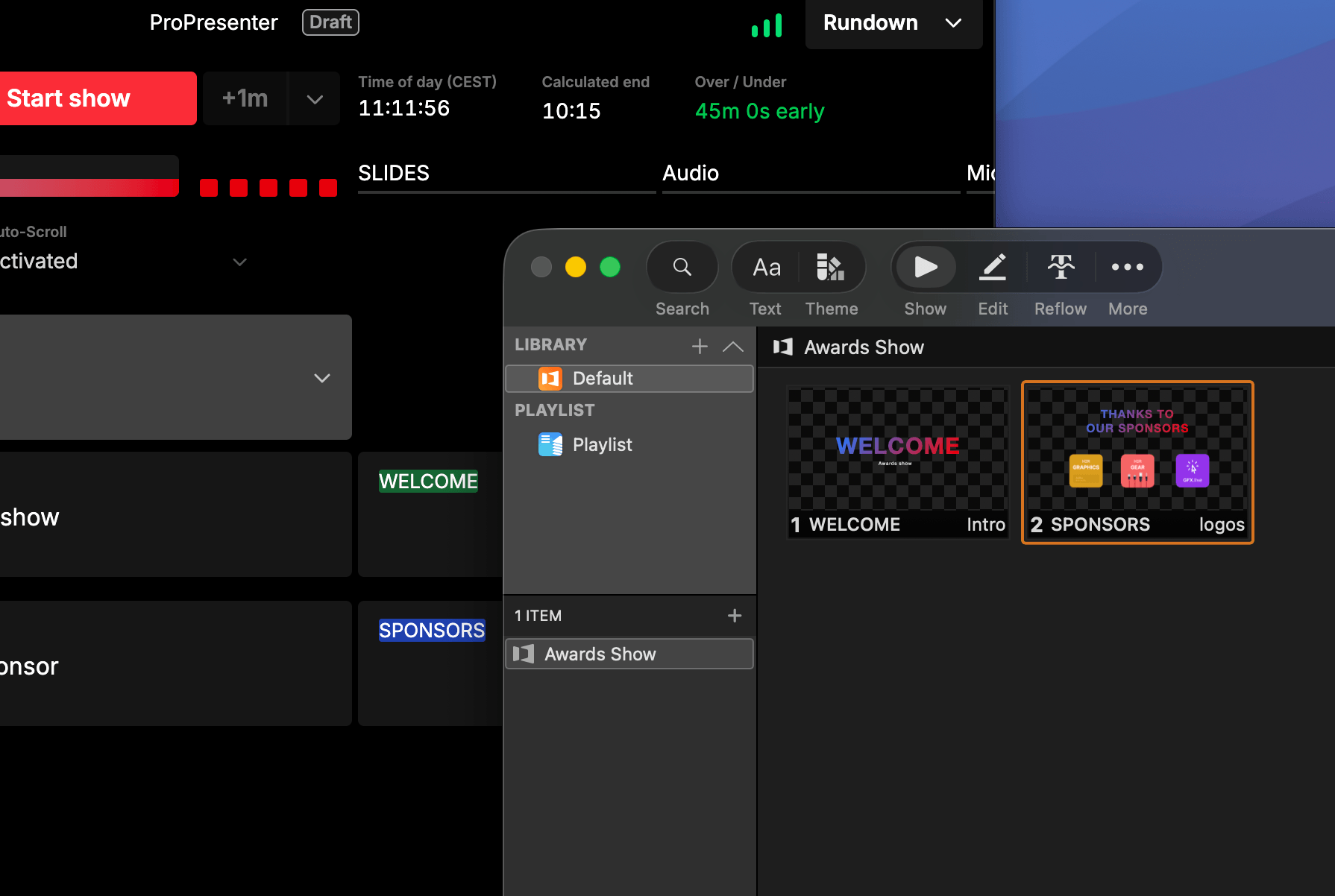
How it works
The two modules divide the job between them:
- You add a SLIDES column to your rundown. In each cue that needs something on screen, the cell holds the name of the ProPresenter group to trigger.
- The Rundown Studio module publishes that cell as a Companion variable for whichever cue is currently active.
- A Companion trigger watches that variable. When it changes, it tells ProPresenter to jump to the group with that name.
Because the trigger keys off the active cue, the rundown is the single source of truth. Reorder your show or swap a group name in the rundown and ProPresenter follows, with no button remapping.
This guide uses groups within one show deck, which is how most conference and event shows are built - a single presentation holding every slide for the day. If you run a deck per item instead, as worship services often do, see One deck per cue below.
Before you start
You’ll need:
- Companion running on a machine that can reach the computer running ProPresenter.
- ProPresenter 7, with network control switched on. This guide uses the ProPresenter API module, which needs Pro7.
- Your Rundown Studio API token and rundown ID.
1. Turn on network control in ProPresenter
In ProPresenter, open Preferences → Network and turn on Enable Network.
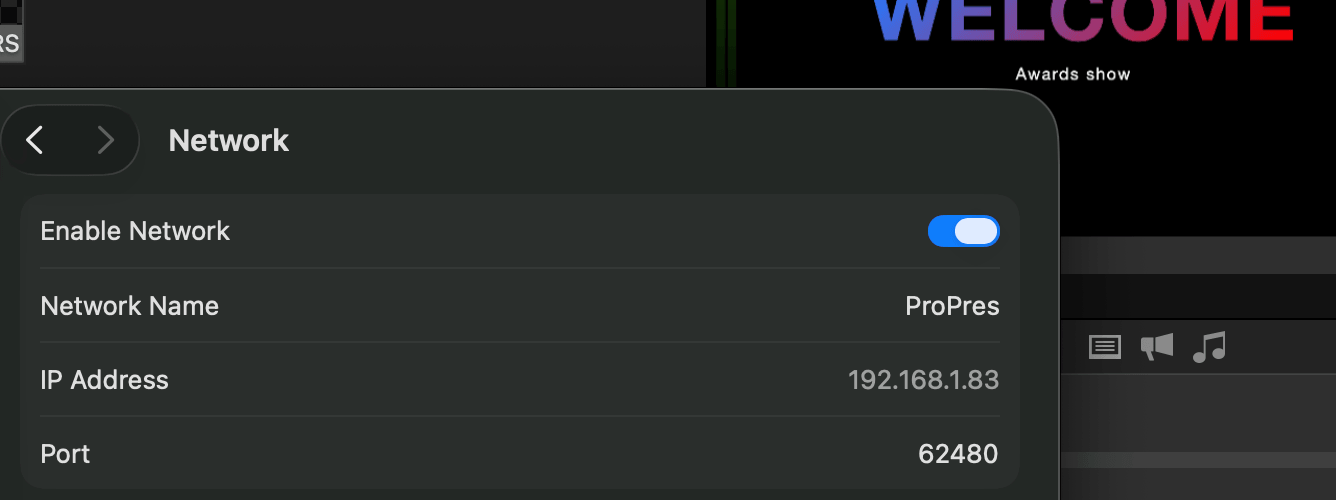
Write down the IP Address and the Port. ProPresenter picks its own port number rather than using a standard one, so don’t assume it matches any figure you’ve seen elsewhere - read it off this screen. In the example above it’s 62480.
Further down the same panel, set a Remote Control Password if there isn’t one. You’ll need it in Companion.
2. Set up the SLIDES column
In your rundown, add a column named SLIDES. See Columns if you haven’t added one before.
In every cue that needs something on screen, put the group name in the SLIDES cell - WELCOME, SPONSORS, and so on. The name has to match the group in ProPresenter exactly, and it’s case sensitive. Leave the cell empty on cues that don’t change what’s on screen.
Groups are the coloured tags on your slides. To add one, right-click a slide in ProPresenter, choose Add Group, and give it the name you’ll use in the rundown. A group can hold a single slide - that’s the normal case here.
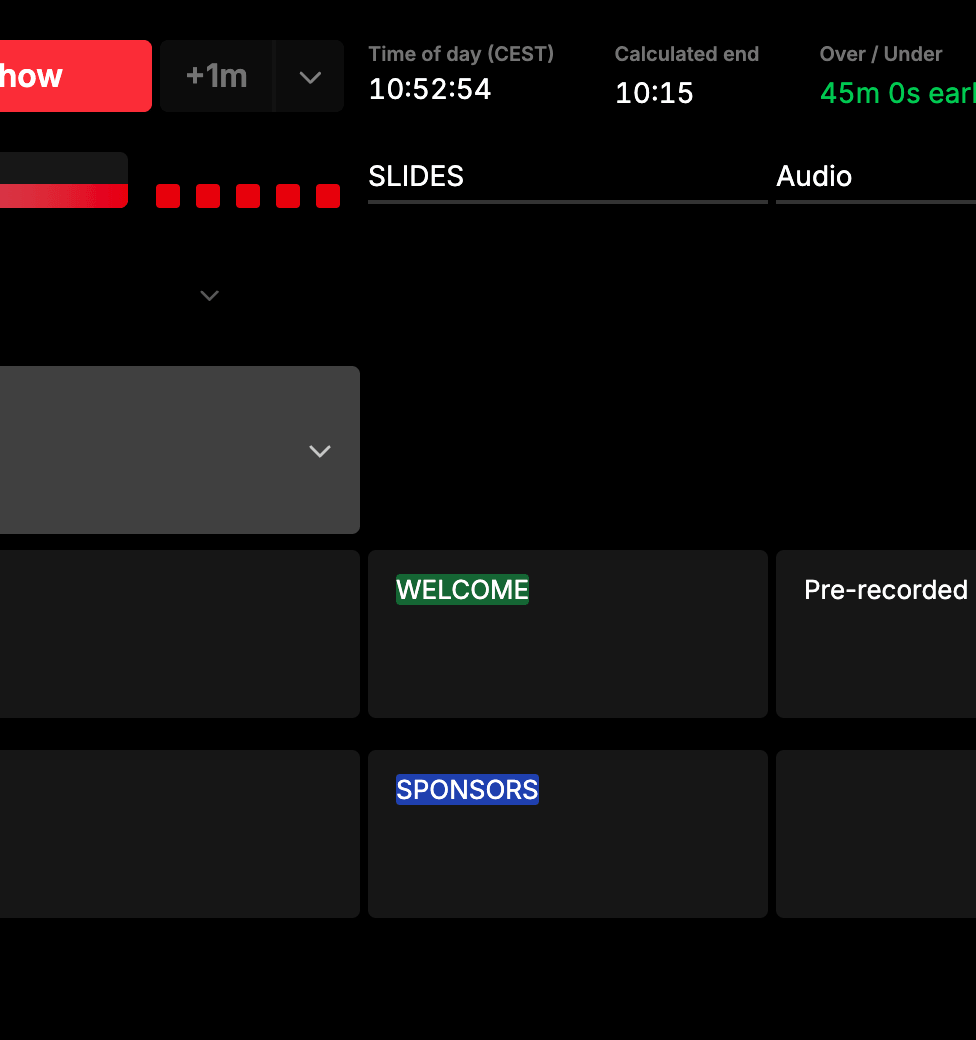
Cell highlighting is optional, but colouring each cell to match its group colour in ProPresenter makes the column quick to scan when you’re checking a rundown at a glance.
Tip: The column has to be public for the module to publish it as a variable, and the name is what the variable is built from. A column called
SLIDESbecomes$(rundown-studio:currentcue_slides).
Group names change. A sponsor slide gets renamed, a deck gets rebuilt the morning of the show, and suddenly every cue pointing at it is wrong.
Instead of typing the name into each cell, store it once as a Text Variable - say slide-sponsors with the value SPONSORS - and use $slide-sponsors in the cell. When the group is renamed, you update the variable in one place and every cue follows, live, for everyone on the rundown.
This pays off most on slides you reference repeatedly, like a holding slide or a sponsor loop that reappears throughout the day.
3. Add the Rundown Studio module
In Companion, open Connections and add the Rundown Studio module, then give it your API Token and Rundown ID.
API tokens are generated from the API section of the Rundown Studio dashboard. Only team admins can generate or regenerate a token, but anyone on the team can read and use it.
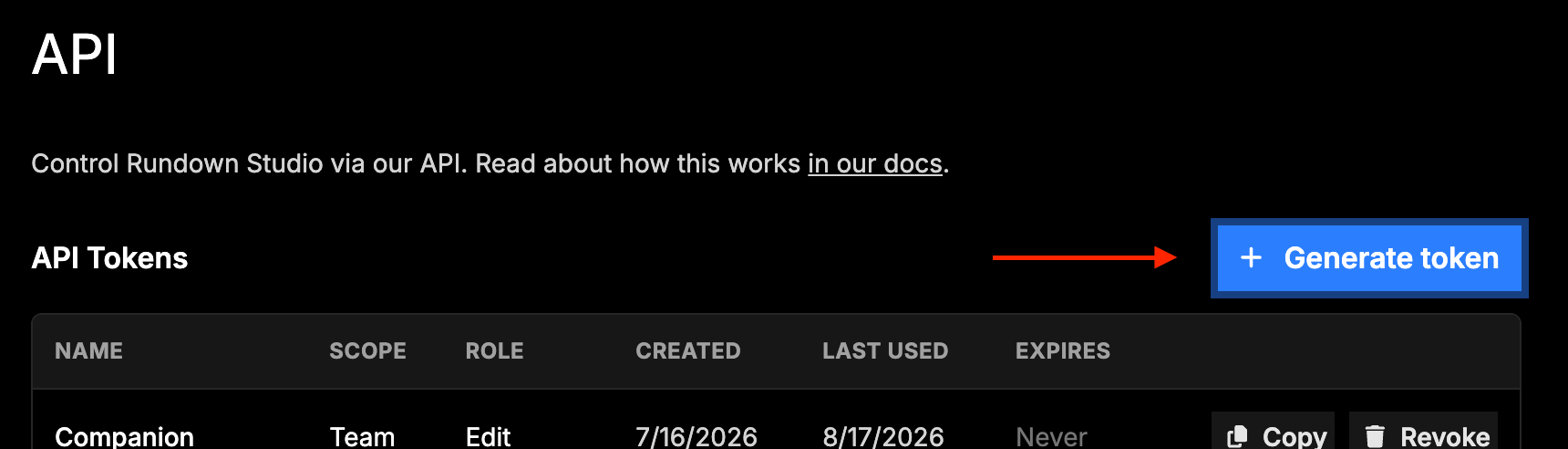
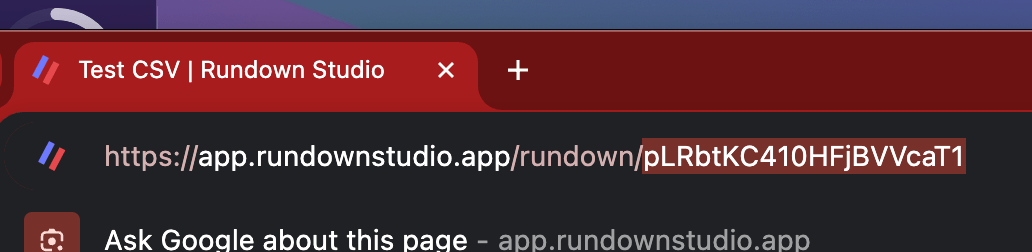
The rundown ID is in the URL of any rundown. For example, if your rundown URL is:
https://app.rundownstudio.app/rundown/pLRbtKC410HFjBVVcaT1
then the rundown ID is pLRbtKC410HFjBVVcaT1.
The full module setup is covered in Companion Module.
Check the variable
Once the connection is up, open the Variables tab and find the Rundown Studio module. You should see currentcue_slides, described as Current Cue: SLIDES, holding the cell of whichever cue is active. If it’s missing, check the column is public and the name is spelled as you expect.

This is the check worth doing before you build anything else. If the value here follows your rundown as you move between cues, the hard part is done and the trigger is a formality.
4. Add the ProPresenter module
Add the Renewed Vision: ProPresenter API module as a second connection. Under Required Connection Settings it needs:
- ProPresenter Computer IP Address (Or Hostname) - the IP Address from the Network panel,
192.168.1.83in the example above. Use127.0.0.1if Companion is running on the same Mac as ProPresenter, as in the screenshot below. - ProPresenter Network Port - the Port from the Network panel. Copy it exactly rather than using whatever the field starts with; ProPresenter 7 picks its own.
- ProPresenter Remote Controller Password - as set in the Network preferences, further down the panel.
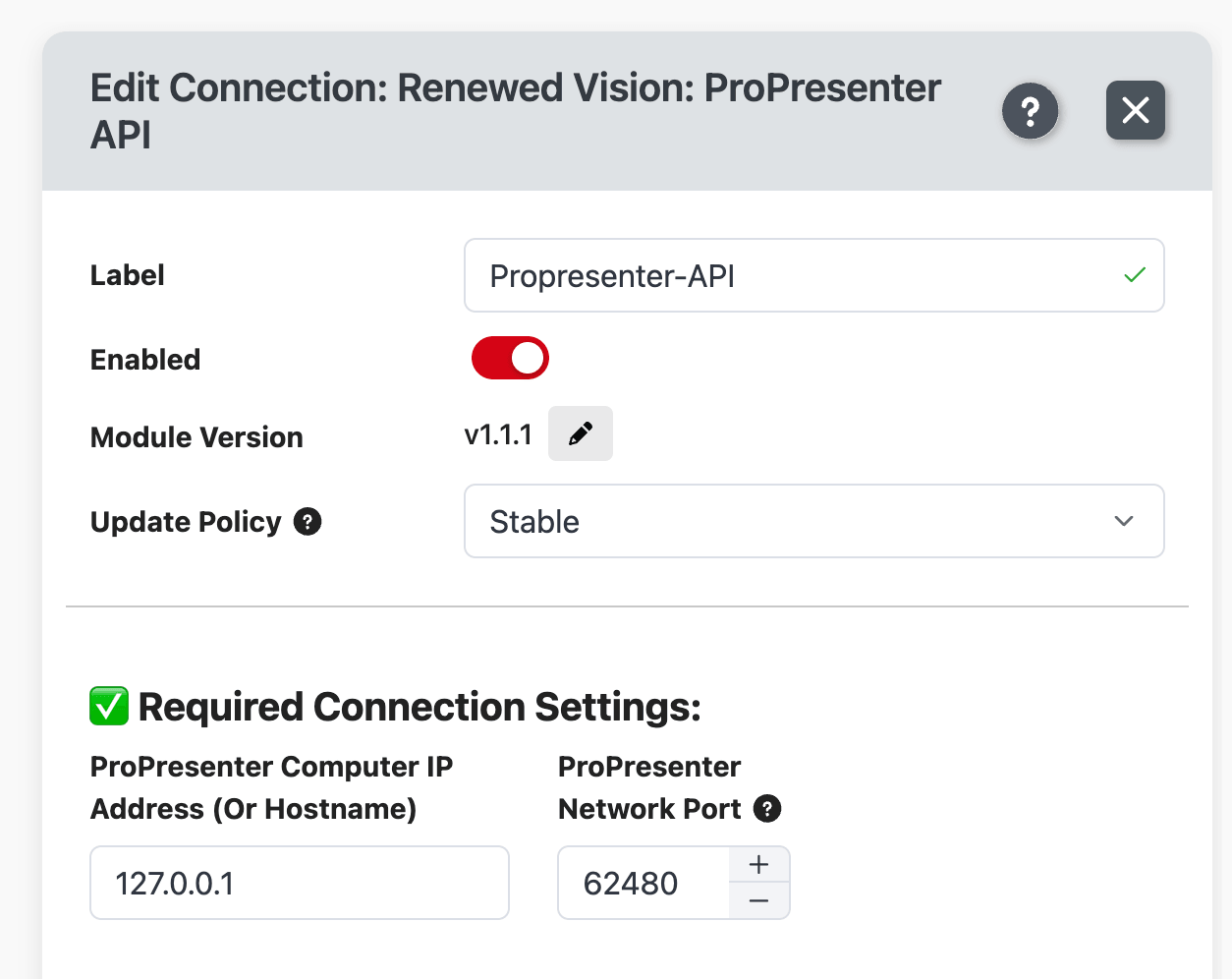
The optional settings below those cover things like stage screens and timers. You can leave them alone for now - a couple are worth revisiting in the extras below.
5. Build the trigger
This is the piece that ties the two together. In Companion, go to Triggers and add a new trigger.
Event: choose Variable value changes and set it to $(rundown-studio:currentcue_slides). The trigger now fires whenever the active cue’s SLIDES cell is different from the last one.
Condition: add a Variable value condition so an empty cell doesn’t fire anything. Set it to check that $(rundown-studio:currentcue_slides) is not equal to an empty value. Without this, moving onto a cue with no group sends a trigger for a group that doesn’t exist.
Action: add the Active Presentation: Operation action and set it up like this:
- Active Presentation: Operation - choose Trigger Specified Group.
- Group - choose Manually Specify Group ID Below.
- Group ID -
$(rundown-studio:currentcue_slides)
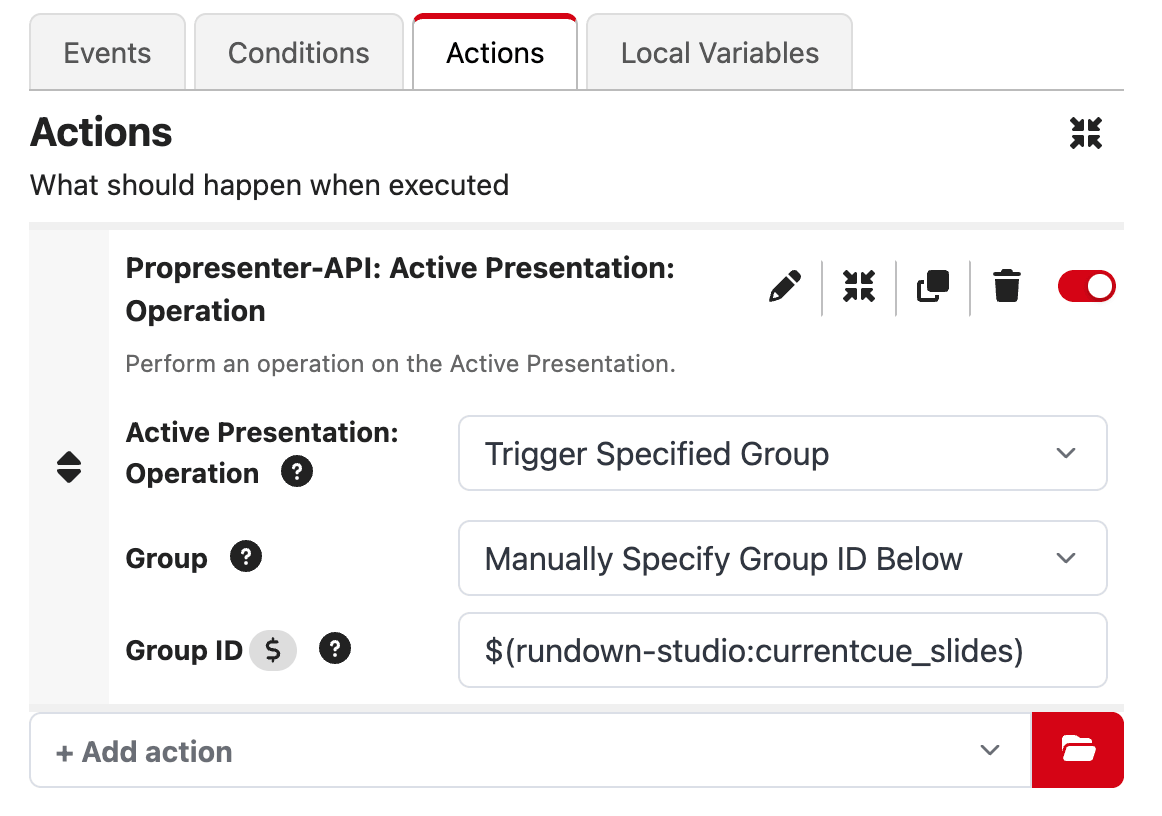
That’s the whole integration. Move to a cue in Rundown Studio, the SLIDES variable updates, the trigger fires, and ProPresenter jumps to the group with that name.
The Group ID field only appears once you’ve chosen Manually Specify Group ID Below, so if you can’t see it, that dropdown is the reason.
Don’t pick a group from the dropdown. It lists the groups the module can see, and choosing one there hard-codes it - every cue would fire that same group. It’s an easy mistake to miss, because testing a single cue looks like it works. Only the manual option gives you the text field that accepts a variable.
Why groups, not slide labels
Individual slides can only be triggered by index - their position in the deck. Groups can be triggered by name, and that name accepts a variable, so groups are what let your rundown hold words a human wrote instead of numbers.
You only need a group on the slides your rundown actually jumps to. If a section is ten slides that the operator clicks through, only its first slide needs a group - the rest are reached with next and previous as normal. On a big deck that’s usually a handful of groups, not one per slide.
To add one, right-click a slide in ProPresenter, choose Add Group, and name it to match the rundown cell.
Because this action targets the active presentation, there’s no playlist or presentation to configure. Bring your show deck up at the top of the show and every trigger lands inside it.
If you’d rather not add groups
The same action can jump by slide number instead. Choose Trigger Slide By It’s Index rather than Trigger Specified Group, and put $(rundown-studio:currentcue_slides) in the Index field. Your SLIDES column then holds 0, 1, 2 and so on - indexes start at zero, so the first slide is 0.
Nothing to set up in ProPresenter, but there’s a real cost: the numbers are positional. Insert a slide halfway through the deck and every cue below it points at the wrong thing, with nothing to warn you. Groups survive that edit, which is why they’re the default here.
It’s a reasonable choice for a deck that’s locked before show day, and a risky one for a deck still being edited the morning of.
The finished thing
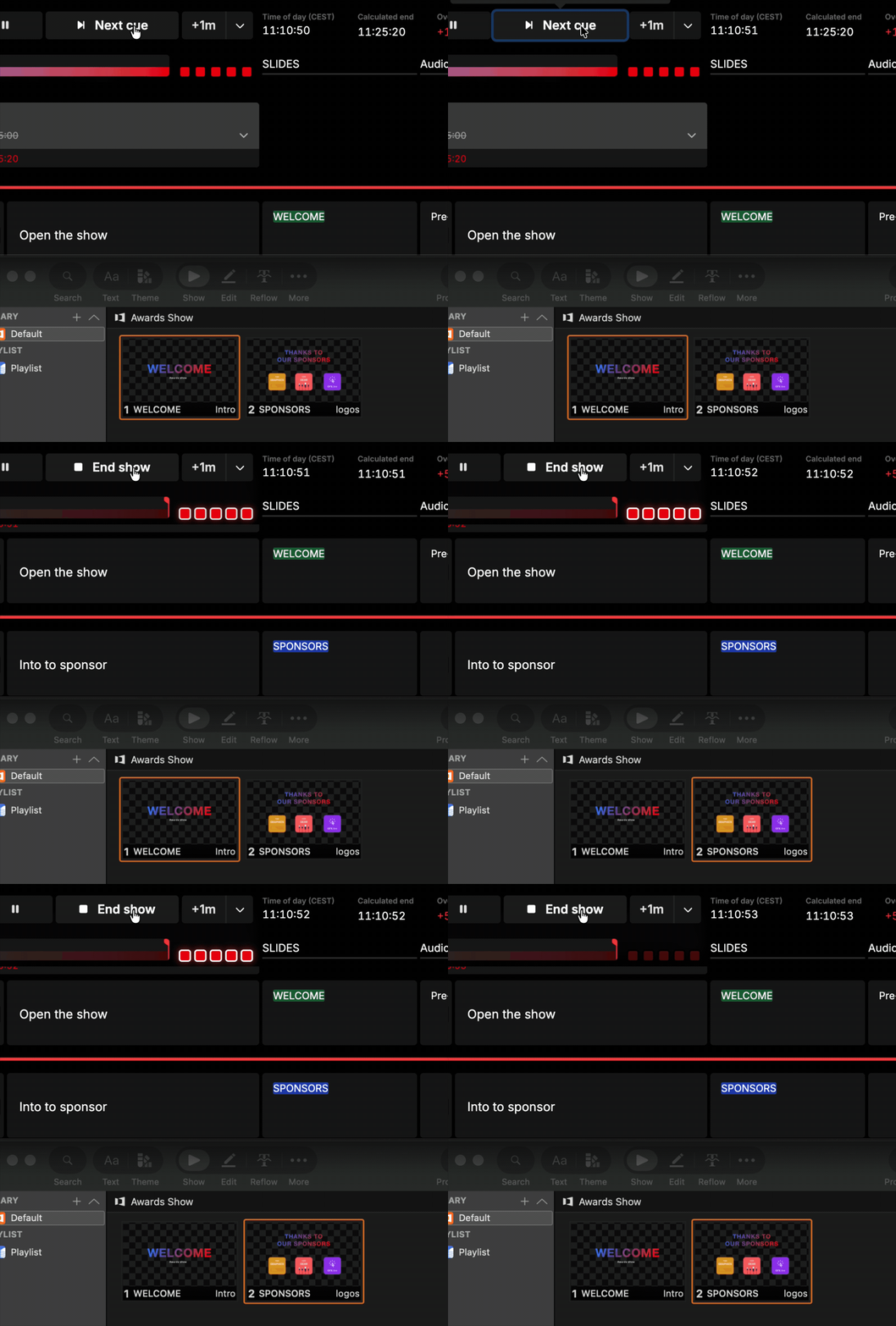
From here on the operator only touches the rundown. The deck is something to glance at, not something to drive.
One deck per cue
If your show is a deck per item rather than one big deck - a presentation per song, per sermon, per segment - use Library: Trigger Specific Slide in Specific Presentation instead:
- Library Id - your library name, for example
Default. - Presentation ID -
$(rundown-studio:currentcue_slides) - Index -
0to open each deck at its first slide.
Both of the first two fields take a name, an index or a UUID, so the SLIDES column can hold presentation names and each cue brings up a different deck.
Going the other way
The same two modules work in reverse, letting ProPresenter drive the rundown. Build a Companion button that runs the ProPresenter Next Slide action and the Rundown Studio Go to next cue action together, and one press advances both.
The Rundown Studio module’s own variables - $(rundown-studio:currentcue_timeleft_mmss) and the rest - sit alongside the ProPresenter ones on the same page, so one surface shows both the running order and what’s on screen.
Useful extras
Some other things worth putting on the same page:
- Clear on the way out. Add a Clear Group: Trigger action to a trigger on cues whose SLIDES cell is empty, so moving to a talking-head cue takes the screen down automatically.
- Timers from the rundown. The Timer: Operation action drives ProPresenter’s timers, so a cue can start or reset a countdown as it becomes active.
- Stage messages. Message: Trigger puts text in front of your speaker. Driven from a rundown column, that becomes a cue-by-cue note to the person on stage without anyone typing during the show.
- Looks and macros. Look: Trigger and Macro: Trigger change the whole screen configuration from a cue. Both take a name or a variable, so they can be driven from their own rundown columns exactly like the SLIDES column.
Troubleshooting
If a cue doesn’t fire its presentation, work down the chain:
- Is the variable right? Check
$(rundown-studio:currentcue_slides)in Companion’s Variables tab while sitting on the cue. If it’s empty or wrong, the problem is in the rundown, not Companion. - Does the group name match? Group names are case sensitive. A trailing space or different capitalisation is enough to miss.
- Does the slide belong to a group at all? A slide with no group can’t be triggered this way. Right-click it in ProPresenter and choose Add Group.
- Is your show deck active? This action targets the active presentation. If nothing has been triggered yet, there isn’t one - bring the deck up once at the top of the show.
- Did you pick “Manually Specify Group ID Below”? If the Group dropdown holds a fixed group instead, every cue fires that same group.
- Is the connection up? Both modules should show as connected in the Connections list rather than an error state.
- Is the port right? If the ProPresenter module won’t connect at all, this is usually why. Re-read the Port in Preferences → Network rather than trusting the default in the Companion field.
Turning on Verbose Mode in the Rundown Studio module’s advanced config writes more detail to the debug log, which usually points straight at the problem.
Related
- Companion Module - full setup for the Rundown Studio module.
- Text Variables - store group names in one place.
- Columns - adding and managing columns.
- OBS Studio - the same trigger pattern driving scene switching.