Getting started
What is Rundown Studio?Create an accountRundown
Rundown basicsColumnsSettingsTrashMentionsText variablesRunning a showImport CSV rundownAPICompanion ModuleEvent
Event basicsSharing eventsSharing and outputs
Read-only rundownEditable rundownOutputPrompterPDF exportCSV exportAccount
Your teamSubscription and invoicesUpdates
ChangelogColumns
Columns help you organise information across your rundown. Learn how to create, edit, reorder, resize and manage columns.
What are columns?
Columns are the vertical sections of your rundown that help you categorise and display information for your production. Each column runs top-to-bottom across all your cues, giving every cue its own cell within that column.
Use columns to break your rundown into logical sections — for example, a “Script” column for dialogue, a “Camera” column for shot types, a “Audio” column for sound cues, or a “Notes” column for general reminders. The flexibility of columns means you can tailor your rundown to match exactly how your team works.

Create a column
To add a new column, click the Add column button found to the right of your existing column headers. A new column will be created and you can immediately give it a name.

Edit a column name
Click on the current column name to edit it. Type your new name and press Enter to save.
Reorder columns
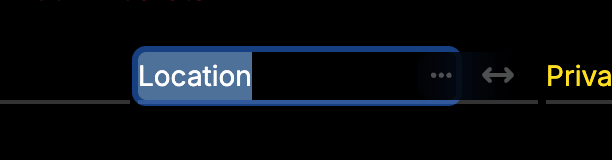
Hover over the Column Reorder icon on any column header to grab it. Click and drag left or right to place the column in a new position.
Resize a column
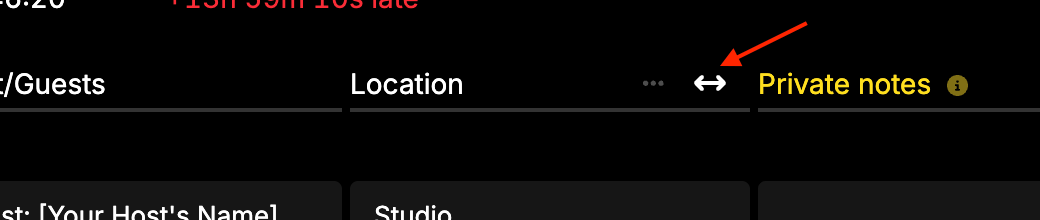
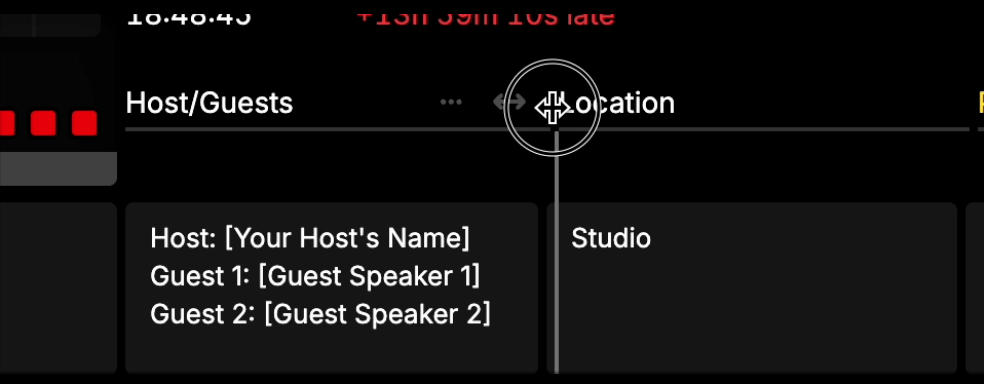
Hover between two column headers to reveal the resize bar. Click and drag left or right to increase or decrease the column width.
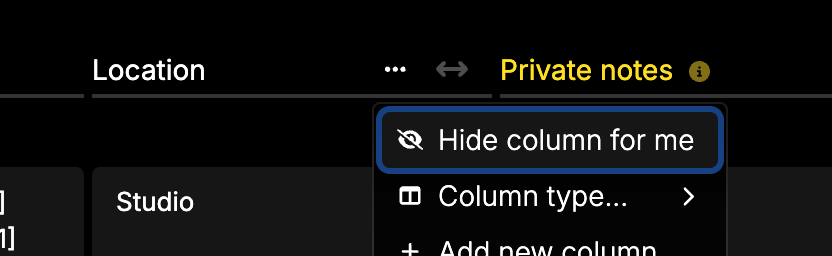
Hide a column for me
If a column isn’t relevant to you, you can hide it from your own display without affecting anyone else on your team.
Hover over the column header and click the ”…” menu, then choose Hide for me. The column will be hidden only for your view.
To show hidden columns again, click the eye icon to the right of the column headers. This will reveal all columns that you have hidden.
Delete a column
To remove a column from the rundown entirely, hover over the column header, click the ”…” menu and choose Delete.
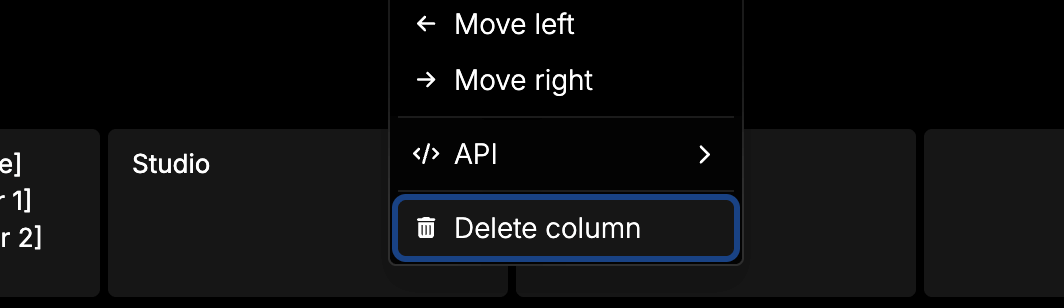
Deleting a column will remove it for everyone on the rundown, along with all cell content within that column. Deleted columns can be recovered from the Trash.
Private notes column
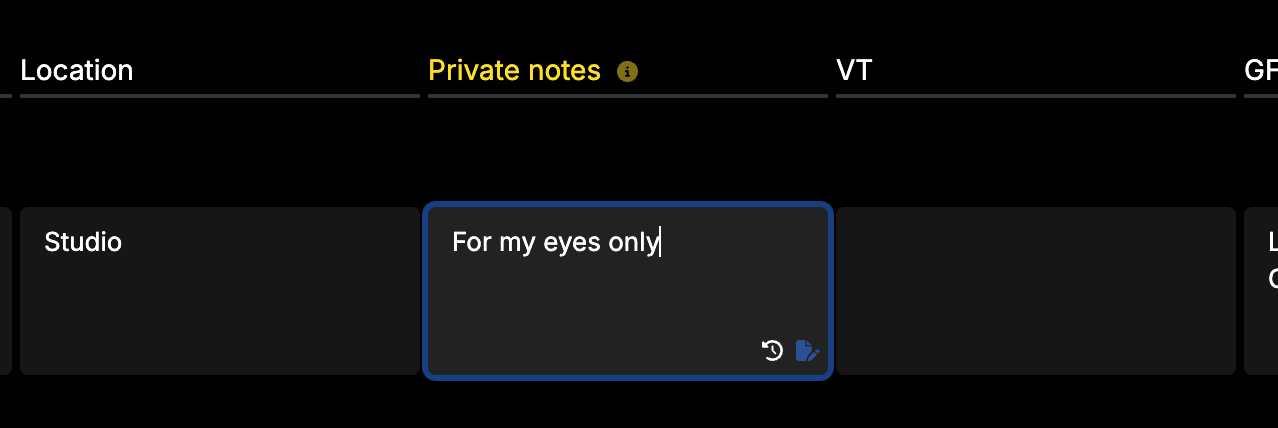
Every signed-in user has access to their own Private notes column. Anything you add to this column is visible only to you — no one else on the rundown can see your private notes.
Use it for personal reminders, last-minute changes, or anything you want to keep track of without cluttering the shared rundown.
You can clear out your private notes at any time without affecting anyone else’s view.