What's new in v2.17
• John Barker
Cells, rebuilt
This is the biggest single piece of work in the release - a full rewrite of the cell editing experience, three months in the making.
Hover or select a cell and you get a small toolbar with just what you need: Edit content and Show history.
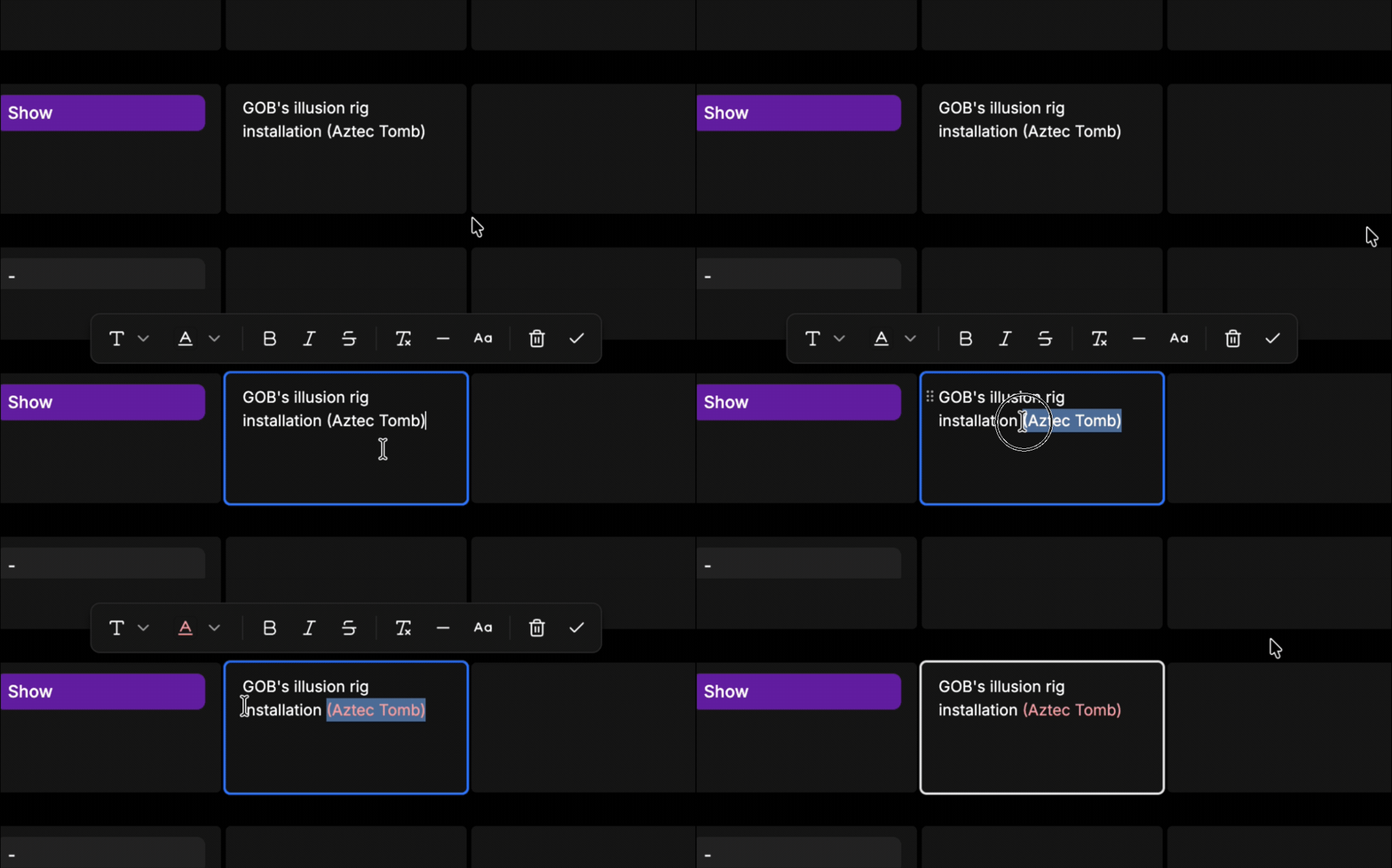
Editing a cell now takes a double-click. A single click selects the cell, and a double-click drops you into the content to start typing. You can also select a cell and press Enter, or use the pencil button on the toolbar.
Most of the rest you won’t see directly, which is rather the point. What you should notice:
- Better mouse and keyboard interaction. Reworked from the ground up, including proper
Escapehandling, shift+tab trapping, and focus returning to the cell you were editing when you’re done. - Advanced drag-and-drop uploads. Drop files onto a cell whether you’re editing it or not, with file limit checks and non-file drops properly rejected.
- An unsaved-changes guard. Navigate away mid-edit and we’ll stop you before you lose anything.
- Accessibility improvements across the toolbar and rundown components.
There’s also a new renderer behind cell previews, used by rundown outputs, the prompter and cell history - so what you see in those places now matches the editor much more closely.
Alongside this, the editor picked up a batch of shortcuts and styling: text-style keyboard shortcuts, custom shortcuts for clear formatting, toggle case and divider, proper strikethrough, code styles, better tasklists, and a drag handle.
One-click fixes for gaps and overlaps
Set a hard start time on a cue and you’ll often create a gap or an overlap - the cues above simply don’t add up to the time you’ve committed to. Working out how to close that difference has always been down to you and a bit of mental arithmetic.
Not any more. Whenever there’s a gap or an overlap, a Fix button now appears next to it with the options spelled out.
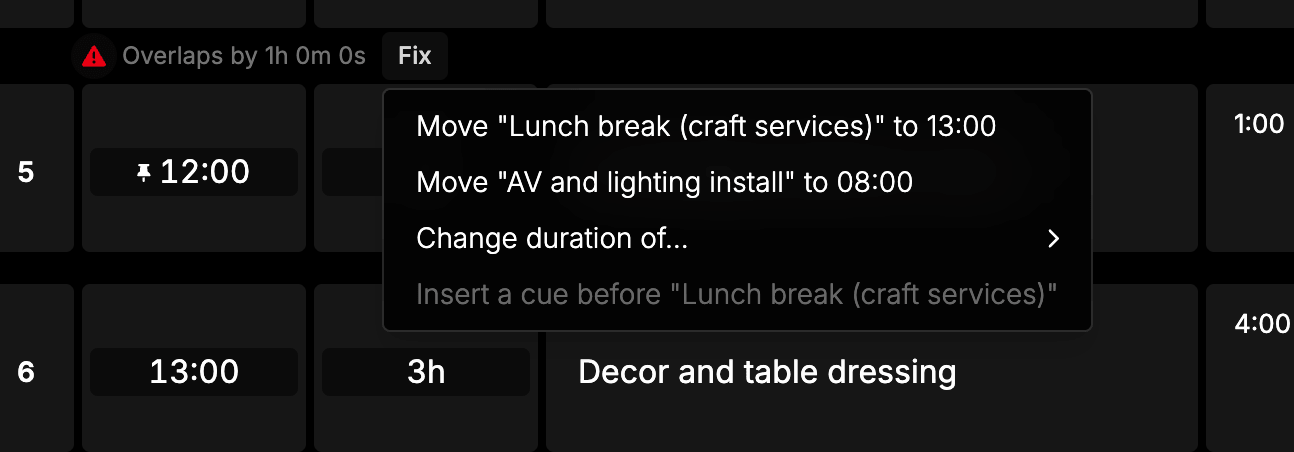
There are four, and each one names the cue it will change and the value it will change it to:
- Move this cue -
Move "Lunch break (craft services)" to 13:00. Slides the hard start cue up or down so it sits directly after the cue above. No durations change. - Move the earlier hard start - shifts the previous hard start so the whole run of cues below lands exactly on this one. This is classic backtiming: you know when the item has to happen, so you work out when to begin.
- Change the duration of a cue above - pick any cue in the segment and it absorbs the whole difference. The submenu shows you the new duration before you commit:
1. Opening → 12m. - Insert a new cue -
Insert 49m cue before "Lunch break (craft services)". Fills the gap with a new empty cue of exactly the right length, without moving anything else.
The best part is what happens when a fix can’t work. Rather than silently doing nothing, the option is greyed out and tells you why - “Overlap is longer than this cue. Pick another cue or a different fix.”
That matters most during a live show. Previously, a fix that would have rewritten cues which had already played was quietly ignored and the gap never closed. Now those options are withheld with a clear explanation, and the ones that remain are all safe to use on air.
Read more about gaps and overlaps.
A clearer end-of-show summary
The bottom of your rundown used to show two competing end times, one of them struck through. It was never obvious which one to trust.
Now there’s a single Calculated end. Before the show it’s the projected end based on your planned durations. Once you’re running it becomes the live end time and moves as cues run over or under, then freezes at the actual finish when you end the show.
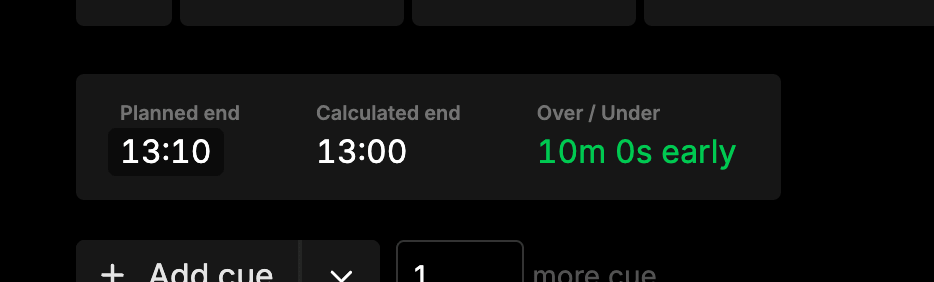
It also now appears in the sticky header, right next to the time of day - so it stays visible while you scroll through a long rundown instead of disappearing off the bottom of the page.
The summary itself has been restyled to match the cue rows, with Planned end remaining an editable pill and everything else read-only.
Read more about the end of show summary.
Four new output options
Rundown outputs pick up four new config options, all for the List layout: cue-numbers, durations, titles and subtitles.
All four default to on, so your existing outputs are completely unchanged. Add them to the output URL to strip the layout back to just what you need:
&titles=off&cue-numbers=off| Option | Hides |
|---|---|
cue-numbers | Index numbers on cues, groups and nested children |
durations | Planned duration and the running timer on the active cue |
titles | Cue and group titles - heading rows disappear entirely |
subtitles | The cue subtitle |
Two things worth knowing. durations=off clears the whole duration column including the live timer, so combining it with cue-timer=off leaves no running clock anywhere. And titles=off removes heading rows completely rather than leaving an empty coloured bar behind.
Read more about output options.
Quick access codes now last 10 minutes
A quick access code is a six-digit shortcut to a share link - handy when a guest is standing next to you and reading out a long URL isn’t practical.
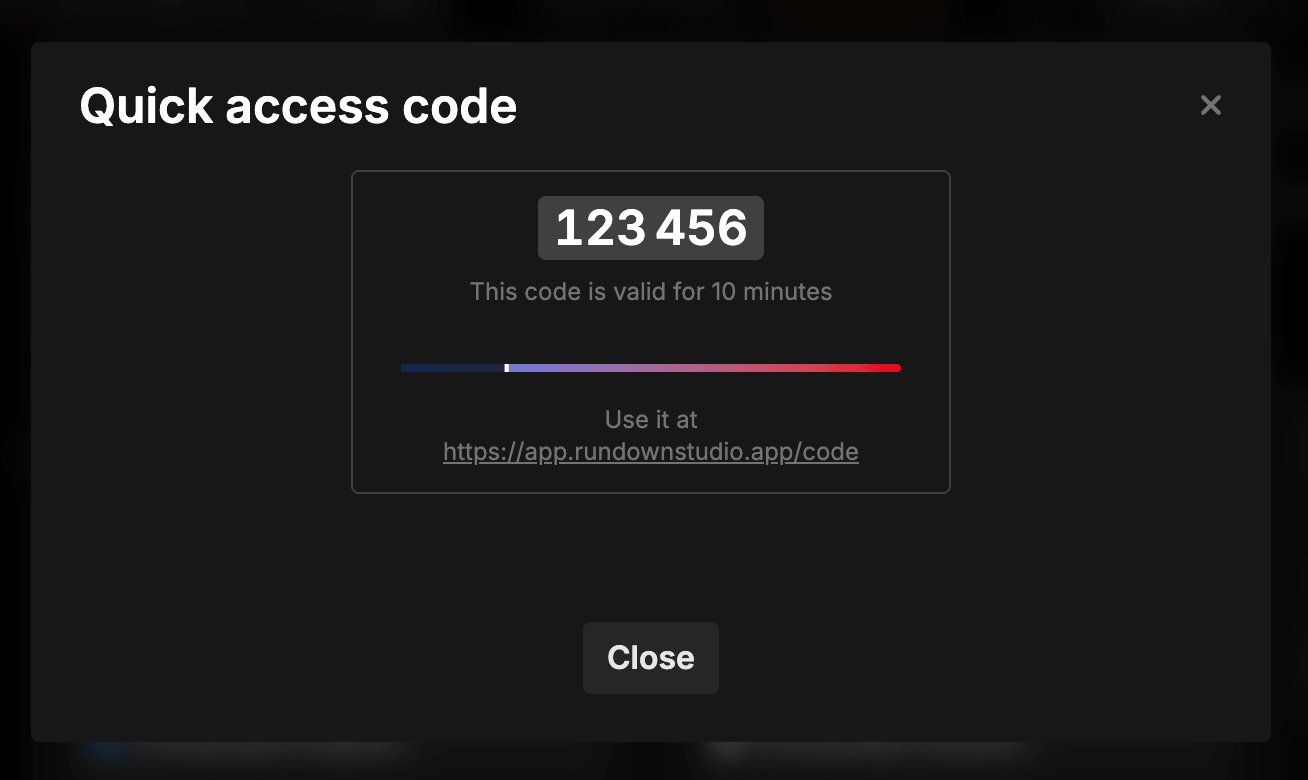
They used to last 90 seconds, which turned out to be nowhere near long enough to get a code to someone and have them type it in. They now last 10 minutes.
Read more about quick access codes.
CSV import fixes
Three fixes here, all from real imports that went wrong:
- Crashes on group children. A group parent row with no title was dropped during processing while its children stayed behind, which broke the import outright. Those orphaned children now import as top-level cues instead.
.5cue numbers. Sheets using102.5to mean “insert between 102 and 103” were having those rows grouped underneath102, producing the wrong structure. A.5now keeps its number and stays top-level. Other decimals like.1and.2still group as before.- Plan limits no longer fail the whole import. Importing a CSV with more columns than your plan allows used to fail everything, behind a misleading “Network error” that hid the real message. We now keep the first rows and columns your plan allows and drop the rest. Titles, start times and durations always come through, and the review step warns you beforehand.
Read more about importing CSVs.
Bug fixes
- Readable highlights on PDF exports - highlighted text was rendering black on dark backgrounds. Highlights now always set an explicit background and pick a readable text colour, covering plain text, mentions and text variables.
- Dropping a cue into the last position of a group - you had to drop second-from-last and then drag again. The last slot in a group now has its own dropzone.
- Performance - faster gap fixes, cue timestamps, List output rendering and file dragging over cells.
- Smaller UI fixes - dropzone outlines no longer clash with the parent outline, better focus and hover states on cells, drag handles return focus to the editor, and paragraph rendering now matches between the editor and outputs.
Thanks a bunch for using Rundown Studio. Stay up to date with development with our email newsletter.